 font inspector
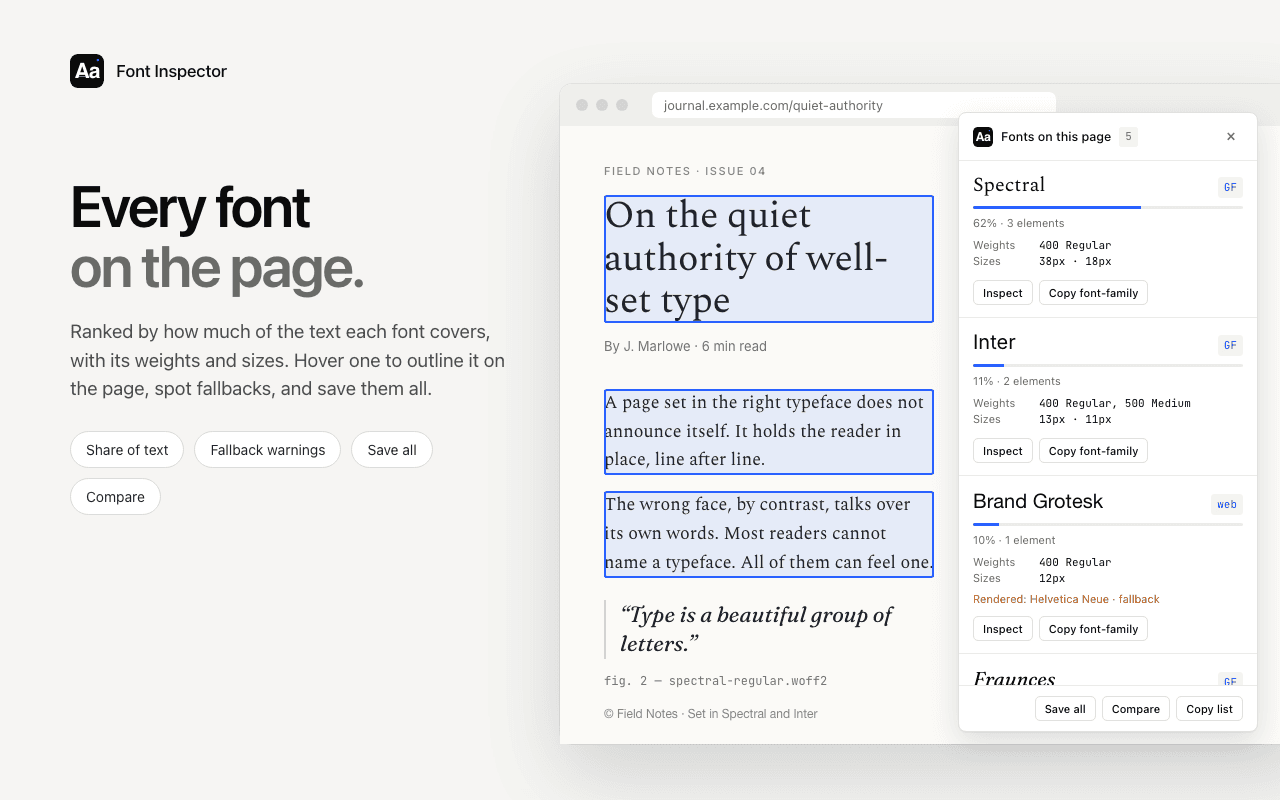
There is no single best font finder, because people want different things from one. For a quick name, WhatFont or Fontanello is enough. For font shopping and discovery, Fonts Ninja. For colors and assets as well as type, CSS Peeper. For text inside images, Font Identifier by WhatFontIs. For an open source inspector that can swap fonts on the live page, Font Finder. For the technical picture of a page’s typography, with rendered font detection, every font on the page, copy as CSS, Tailwind or SCSS and a local library, Font Inspector. All seven can be installed free of charge.
How we compared them
We make Font Inspector, so you should expect us to like it. To keep this page useful anyway, we set a few rules. Every statement about another extension comes from its Chrome Web Store listing or its official site, both opened on September 20, 2026 and linked at the end. We do not quote ratings, review counts or user numbers, because they say little about whether a tool fits you. And where a vendor’s pages do not mention a feature, we say “not mentioned” and do not guess.
All of these tools read live text from the page’s code. That is why six of the seven cannot help with a logo or a banner image. If that is your case, skip to Font Identifier by WhatFontIs or read how to identify a font from an image.
| If you want | Look at |
|---|---|
| Only the font name, as fast as possible | WhatFont or Fontanello |
| The rendered font, all fonts on the page, and code to paste | Font Inspector |
| Foundry, price and similar typefaces | Fonts Ninja |
| Colors, images and icons as well as type | CSS Peeper |
| Open source, and testing another font on the live page | Font Finder |
| A font inside an image on the page | Font Identifier by WhatFontIs |
Type-focused inspectors
These four tools concentrate on the text itself: what font it is and how it is set.
Font Inspector
What it does well. Start from the toolbar, from Alt + Shift + F, or by right-clicking text and choosing Inspect Font. The panel shows the declared family and fallback stack, the font actually rendered with a flag when a fallback is showing, and the source of each family: Google Fonts, Adobe Fonts, self-hosted or system. You also get weight, size in px, em and rem, line height, letter spacing, variable font axes, OpenType features, colors and a WCAG contrast check. Fonts on this page ranks every family by share of text. Any style copies as CSS, Tailwind classes or SCSS variables. Every inspection lands in a local library where you can compare up to four fonts and export as JSON, CSS variables or design tokens. It is free, with no account, and nothing is synced to a server.
Who it suits. Developers and designers who rebuild or audit typography, and anyone who needs to know whether the declared font is the one on screen.
Limits. Chrome and Chromium browsers only, so no Firefox or Safari. It cannot read fonts in images, canvas or video. It does not show font prices or foundries, and it does not inspect colors palettes, images or layout. Look-alike suggestions for paid fonts are approximate.
WhatFont
What it does well. Simplicity. Click the toolbar button, hover over text to see the font, and click for a box with the styles applied. Its repository describes the script as detecting which font in the stack is being used, and its site says it detects fonts served through Typekit and the Google Font API. It is also offered as a Safari extension and as a bookmarklet that needs no installation.
Who it suits. Anyone who wants a name and the basics, and people on computers where installing extensions is restricted.
Limits. Its pages do not mention a page-wide font list, code export or a saved library. The Chrome Web Store listing shows its last update as March 4, 2024. Full details are in Font Inspector vs WhatFont.
Fontanello
What it does well. It lives in the right-click menu. Right-click text and read the typeface, weight, size and line height, color, letter spacing, font features, variable settings and a contrast ratio with its grade. The listing shows a download size of about 16 KiB. The official site links to versions for Chrome, Firefox and Edge, and to an iOS app.
Who it suits. People who check a font now and then and want no interface to learn, and Firefox users.
Limits. Its pages do not mention rendered font detection, a page-wide list, code export or a library. The Chrome Web Store listing shows its last update as April 22, 2024. More in Font Inspector vs Fontanello.
Font Finder
What it does well. Font Finder is an open source inspector, released under the Mozilla Public License 2.0 according to its official page. You can start it from the toolbar button, from the right-click menu on selected text, or with a shortcut you configure. It reports color, background, family, size, line height, spacing, weight and style, and the element’s identifiers, and lets you copy any of them. Its official page says it evaluates every character in the selected text to find the font actually rendered, and shows a percentage per family. It can also replace a font on the live page so you can test another typeface in place, and it lists all fonts in the current frame. The official page describes it as free, with optional donations.
Who it suits. Developers who value open source, people who want to try a different font on a real page without touching its code, and users of several browsers. Its official page lists versions for browsers including Chrome, Firefox, Edge and Opera.
Limits. Its official page notes that results can be less accurate on complex elements that contain child elements, and that analysis works best on selected text. Its pages do not mention Tailwind or SCSS export or a saved library. The Chrome Web Store listing shows version 0.6.5, with its last update as April 3, 2026.
See what is declared, what is rendered, and copy it as code.
Font Inspector shows the rendered font with fallback flags, lists every font on the page, and copies styles as CSS, Tailwind or SCSS. Free, no account.
Discovery, design and image tools
These three go beyond naming the font, each in a different direction.
Fonts Ninja
What it does well. Hover over text for the font name and CSS properties, then go further: foundry, number of styles, price, similar typefaces, and a font search with filters such as character shapes and license type. Its listing describes Font DNA, an algorithm that analyzes the font file itself so that renamed or custom web fonts are still named correctly. It shows a summary of every font on the page. You can bookmark fonts to shareable boards after signing up for a free account. The official site says the extension is free on Chrome, Safari, Firefox and Microsoft Edge, with a Safari extension for iPhone.
Who it suits. Designers choosing and buying typefaces, teams that share font shortlists, and Firefox or Safari users.
Limits. Bookmarks need an account, and its listing discloses that it handles personally identifiable information, authentication information and location. Its pages do not mention Tailwind or SCSS export or a contrast check. The listing shows its last update as September 18, 2026. More in Font Inspector vs Fonts Ninja.
CSS Peeper
What it does well. It inspects the whole visual layer. The free core covers point-and-click inspection of design properties, the colors a site uses with contrast checking and palette export, typography across the site, and browsing and downloading images, icons and graphics. Paid plans add copying the CSS of any element, the typography hierarchy, semantic color groups, gradients, a page-wide contrast scanner and a sidebar mode.
Who it suits. Designers who need palettes and assets as often as fonts. For that work it is a better fit than any type-only tool on this page, Font Inspector included.
Limits. Several typography features sit in the paid Professional and Ultra plans, and the listing confirms in-app purchases. Its pages do not mention rendered font detection or font source. The listing shows its last update as September 11, 2026. More in Font Inspector vs CSS Peeper.
Font Identifier by WhatFontIs
What it does well. It is the one extension here that handles images. According to its listing you can hover over text to identify a web font, capture a visible area of the page and analyze the text in it, or send an image from the page to the WhatFontIs service. It then shows similar matches, including free and commercial alternatives, and keeps a small history of recent finds.
Who it suits. Anyone whose mystery font is in a logo, a banner or a product photo.
Limits. Image matching is a best guess, and the vendor’s own site says image searches can return mixed results. Captures and images are sent to the WhatFontIs service for analysis, and the listing discloses that the extension handles website content. The official site offers it for Google Chrome only. The listing shows version 2.5.10, with its last update as April 28, 2026.
Comparison table
| Extension | How you start | Goes beyond the font name with | Price and account | Browsers stated by the vendor |
|---|---|---|---|---|
| Font Inspector | Toolbar, shortcut or right-click | Rendered font and fallback flag, font source, all fonts on the page, copy as CSS, Tailwind or SCSS, local library with compare and export | Free, no account | Chrome and Chromium browsers such as Edge and Brave |
| WhatFont | Toolbar button, then hover | Font in use from the stack, Typekit and Google Font API detection | No price or account mentioned | Chrome, Safari, bookmarklet |
| Fontanello | Right-click | Contrast ratio, font features, variable settings | No price or account mentioned | Chrome, Firefox, Edge, iOS app |
| Font Finder | Toolbar, right-click or custom shortcut | Per-character rendered font, live font replacement, fonts in the frame | Free, open source, donations optional | Chrome, Firefox, Edge, Opera and others |
| Fonts Ninja | Hover | Foundry, price, similar fonts, font search, bookmark boards | Free extension, free account for bookmarks | Chrome, Safari, Firefox, Edge, Safari on iPhone |
| CSS Peeper | Point and click | Colors and palettes, assets, element CSS, contrast scanner | Free plan plus two paid plans | Chrome Web Store |
| Font Identifier by WhatFontIs | Hover, or capture an area | Fonts in images, similar free and commercial matches | No in-app purchases listed | Chrome |
How to choose in two minutes
- Start with the text. If you cannot select it with your cursor, it is an image, and only an image-based tool will help.
- Think about the next step. After the name, do you buy, or do you build? Buyers benefit from Fonts Ninja’s foundry and price details. Builders benefit from code export and the full spec, which is Font Inspector’s territory. See copy typography as CSS or Tailwind.
- Check your browser. On Firefox or Safari, Font Inspector is not an option. Fontanello, Fonts Ninja and Font Finder state Firefox support, and Firefox’s own Fonts tab is good too. See finding fonts in Firefox, Safari and Edge.
- Decide how you feel about accounts and data. Font Inspector, WhatFont, Fontanello and Font Finder state that they collect no data or need no account. Fonts Ninja’s bookmarks and CSS Peeper’s paid plans involve signing up.
- Ask whether fallbacks matter to you. If you debug fonts that fail to load, pick a tool that reports the rendered font. CSS font stacks and fallbacks explains why the declared name alone can mislead.
Two tools that cover different ground are often the right answer. CSS Peeper for colors and assets alongside Font Inspector for type is one sensible pairing. Fonts Ninja for browsing typefaces alongside Font Inspector for building is another.
You may not need an extension at all
Every desktop browser can name a font by itself. In Chrome and Edge, right-click the text, choose Inspect, open the Computed tab and scroll to the Rendered Fonts section at the bottom. It takes about a minute, and it is exact. The full walkthrough is in how to find a font with Chrome DevTools.
For a one-off check without installing anything, paste the address into our website font checker. It shows which fonts a site declares, where they are hosted and which font files it loads. An extension earns its place when you do this often, or when you want the answer next to the text in one click.
How to try them side by side
- Pick the two or three tools from the first table that match your need, and install them. They can run alongside each other.
- Refresh your test pages. Tabs that were open before installing often need a reload.
- Use three pages: one on Google Fonts, one that self-hosts a commercial font under an internal name, and one with a font that fails to load or a visible fallback.
- On each page, do your real task, whether that is naming a headline font, listing all fonts on the page, or copying values into your editor.
- Keep what helped and remove the rest. Every extension you keep can read the pages you visit, so a short list is a healthy habit.
Remember that finding a font is not the same as having the right to use it. Before you put a typeface into a project, read font licensing explained.
Questions & answers
What is the best Chrome extension to identify fonts?
It depends on what you do after you have the name. WhatFont and Fontanello are quick and minimal, Fonts Ninja adds foundry and price, CSS Peeper adds colors and assets, and Font Inspector adds rendered font detection, a page-wide font list and copy as CSS, Tailwind or SCSS.
Are font finder extensions free?
All seven on this page can be installed free of charge. CSS Peeper keeps some features for paid plans, and Fonts Ninja asks for a free account to bookmark fonts. Font Inspector is free with no account.
Can a Chrome extension identify a font in an image?
Most cannot, because they read the page’s code and an image contains no font data. Font Identifier by WhatFontIs can capture part of a page and send it to an image matching service, which returns a best guess.
Which font finder shows the font that is actually rendered?
Font Inspector shows the rendered font and flags fallbacks. Font Finder’s official page says it checks each character for the rendered font, and WhatFont’s repository says it detects which font in the stack is in use. Chrome DevTools shows the same under Rendered Fonts.
Related free tools: Website font checker · Font pairing playground
See it on real sites: What font does Tesla use? · What font does Duolingo use? · What font does Microsoft use? · What font does Wikipedia use?
Sources and further reading: WhatFont on the Chrome Web Store · WhatFont Tool, official site · Fonts Ninja on the Chrome Web Store · Fonts Ninja: browser extension page · CSS Peeper on the Chrome Web Store · CSS Peeper: pricing · Fontanello on the Chrome Web Store · Fontanello: official site · Font Finder on the Chrome Web Store · Font Finder: official page · Font Identifier by WhatFontIs on the Chrome Web Store · WhatFontIs: browser extension page