 font inspector
Fonts Ninja is a font identifier connected to a font catalog: it names the font, then shows the foundry, the price and similar typefaces, and lets you bookmark fonts to boards once you create a free account. It is the better choice if you are shopping for typefaces or you work in Firefox or Safari. Font Inspector is the better choice if you want the technical picture of a page: the rendered font with fallback flags, every font on the page, the style copied as CSS, Tailwind or SCSS, and a library kept locally with no account at all. Both extensions are free.
The short answer
These two tools start from the same click and then head in different directions. Fonts Ninja treats the font name as the start of a buying decision: who made it, what it costs, what looks similar. Font Inspector treats it as the start of a build: what exactly is rendered, at what size and weight, and how do I get those values into my code.
Neither direction is wrong. A brand designer choosing a typeface for a client and a front-end developer matching a reference are doing different jobs. This page sets out what each tool states about itself so you can pick by job, not by habit.
What Fonts Ninja does, according to its own pages
We read the Chrome Web Store listing and the official Fonts Ninja site on September 20, 2026. Here is what they state.
- Identification. Hover over any text to get the font name and CSS properties. The site lists font size, line height and colors among the details.
- Font DNA. The listing describes a proprietary algorithm that analyzes the real font file, not only the CSS, so that results stay correct when a site uses renamed or custom web fonts.
- Page summary. The extension also shows a summary of every font used on the page.
- Font details. The number of styles available, the foundry and the price. The site adds the designer and the alphabets or languages a typeface supports.
- Similar fonts. Suggestions for similar or complementary typefaces.
- Bookmarks. Save fonts to boards inside the extension and share the boards with teammates. The site’s bookmarks page asks you to sign up for a free account to do this.
- Font search and catalog. Search with filters such as character shapes, license type and price. The website itself is a catalog where you can discover, buy and download fonts.
- Browsers. The site says the extension is available for free on Chrome, Safari, Firefox and Microsoft Edge, and there is a Safari extension for iPhone.
- Version. The Chrome Web Store listing shows version 9.0.1, with its last update as September 18, 2026.
On privacy, the Chrome Web Store listing discloses that the extension handles personally identifiable information, authentication information and location, and that this data is not sold to third parties. That fits a product with user accounts. Font Inspector has no accounts, saves every inspection locally in your browser and syncs nothing to a server.
Is Fonts Ninja free?
The browser extension is. Both the Chrome Web Store listing and the official site describe it as free, and the listing shows no in-app purchases. Bookmarking needs an account, and the sign-up page describes that account as free too.
What can cost money are the fonts themselves. The catalog shows a “from” price next to many typefaces, set by their foundries. That is normal: fonts are licensed software, as we explain in font licensing explained. The listing also mentions trying fonts, but it does not say how that works or whether it costs anything, so check with the vendor.
Feature comparison
Where a cell says “not mentioned”, the vendor’s pages do not describe the feature. That is not proof it is missing.
| Fonts Ninja | Font Inspector | |
|---|---|---|
| How you start | Hover over text | Toolbar button, Alt + Shift + F, or right-click and Inspect Font |
| How the font is identified | Font DNA, which analyzes the font file | Reports the rendered font and flags fallbacks |
| Every font on the page | Yes, a summary | Yes, ranked by share of text, with weights, sizes and fallback warnings |
| Foundry, designer and price | Yes | No |
| Similar fonts | Yes, from its catalog | Free Google Fonts look-alikes for popular paid and system fonts, computed locally |
| Font source (Google, Adobe, self-hosted, system) | Not mentioned | Yes |
| Copy as CSS, Tailwind or SCSS | Not mentioned | Yes |
| Contrast check | Not mentioned | Yes, WCAG |
| Saved fonts | Bookmark boards, shareable, with a free account | Local library with collections, compare and export, no account |
| Export | Not mentioned | JSON, CSS variables or design tokens |
| Browsers | Chrome, Safari, Firefox, Edge, Safari on iPhone | Chrome and Chromium browsers such as Edge and Brave |
| Price | Free extension | Free |
| Account | Needed for bookmarks | None |
When Fonts Ninja is the better choice
- You are choosing a typeface to buy. Seeing the foundry, the number of styles and a starting price next to the name saves a round of searching. Font Inspector does not show prices or foundries.
- The site hides the font behind an alias. Many sites name their font something like
brand-sansin the CSS. Fonts Ninja says its Font DNA analysis reads the font file itself to name the real typeface. Font Inspector reports the rendered family and lists the font files a self-hosted font loads, which often reveals the name, but it does not fingerprint the file. - You want discovery. Similar and complementary suggestions drawn from a large commercial catalog, plus search by character shapes and license type, are a real help when you are exploring.
- You share finds with a team. Boards you can share are built for that.
- You use Firefox or Safari, or an iPhone. Font Inspector runs only in Chrome and Chromium browsers.
When Font Inspector is the better choice
- You need to know what is really rendered. The panel shows the declared stack, the font actually drawn, and a flag when they differ. That is what you need to debug a font that failed to load. See CSS font stacks and fallbacks.
- You are going to write code. Click any value to copy it, or copy the whole style as CSS, Tailwind classes or SCSS variables. Details in copy typography as CSS or Tailwind.
- You want where the font comes from. Each family is labeled as Google Fonts, Adobe Fonts, self-hosted or a system font. For self-hosted fonts you get the list of files and a ready
@font-facerule. More in Google Fonts or Adobe Fonts check. - You want the full type spec. Size in px, em and rem, line height as a ratio, letter spacing, variable font axes, OpenType features and a WCAG contrast check in the same panel.
- You would rather not create an account. The library works from the first click and stays in your browser. You can compare up to four fonts side by side and export as JSON, CSS variables or design tokens.
- You want a free alternative, not a price. For popular paid and system fonts, Font Inspector suggests free Google Fonts look-alikes. They are similar, not identical.
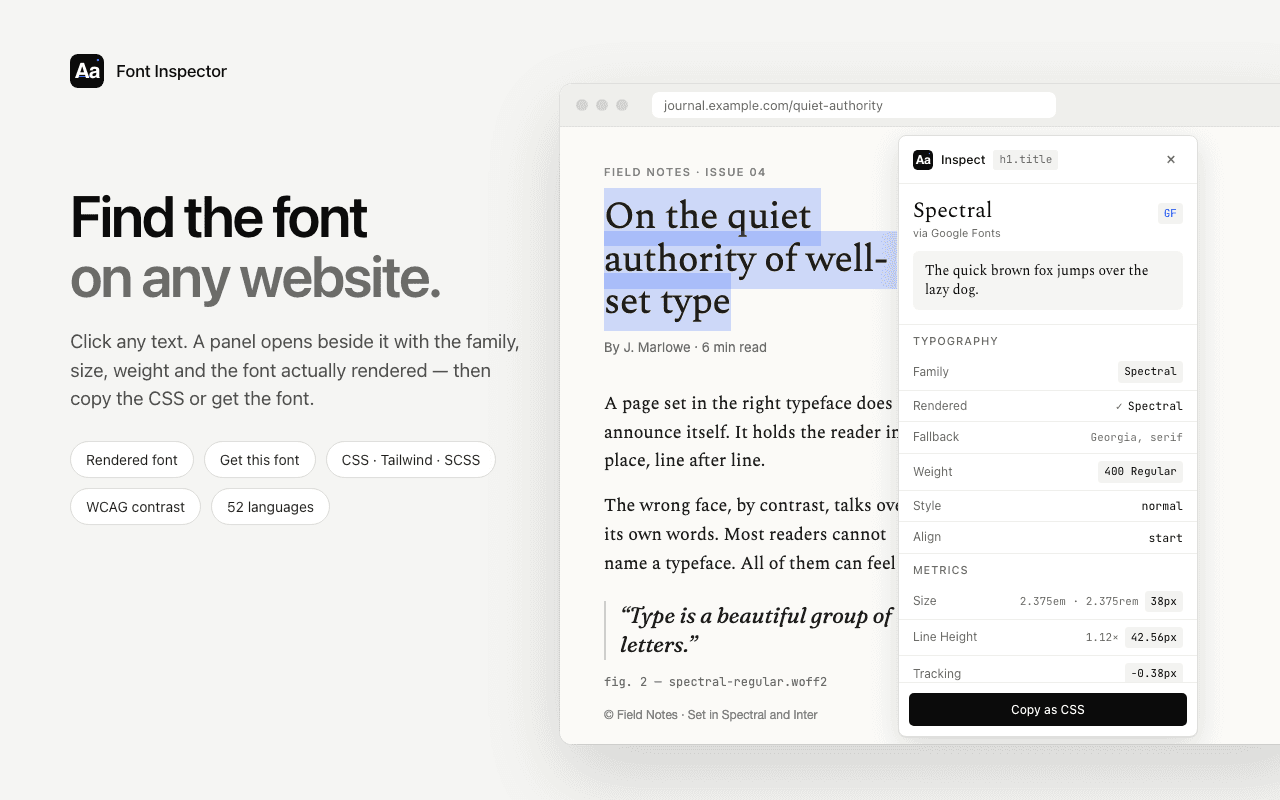
From a font on a page to CSS in your editor.
Font Inspector shows the rendered font, its source and the full type spec, then copies it as CSS, Tailwind or SCSS. Free, no account, nothing synced.
Font Inspector as a Fonts Ninja alternative
If you are searching for a Fonts Ninja alternative, here is what carries over and what does not.
What carries over
- Naming the font on any page from a click. Both do this, and Font Inspector adds the font actually rendered, with a flag when a fallback is showing.
- Similar fonts. Fonts Ninja points to its catalog. Font Inspector suggests free Google Fonts look-alikes for popular paid and system fonts, computed locally. They are similar, not identical.
- Saving fonts for later. Fonts Ninja keeps boards behind a free account. Font Inspector keeps a library in your browser with no account, with collections, side-by-side compare and export as JSON, CSS variables or design tokens.
What you give up
- Foundry and price. Font Inspector does not show who sells a font or what it costs. It links to Google Fonts or Adobe Fonts when that is the source.
- Firefox, Safari and iPhone. Font Inspector runs in Chrome and Chromium browsers such as Edge and Brave only.
- Sync between devices. The library stays local. Export it as JSON to move it.
How to try both side by side
The two extensions can be installed together. A short test on pages you know tells you more than any table.
- Install both, then refresh the page you want to test.
- Pick one site that uses Google Fonts and one that self-hosts a commercial typeface under an internal name. Inspect the same headline with each tool.
- Compare the answers. Did each name the same typeface? Which one told you what you needed next: the price and foundry, or the source and the CSS?
- Open each tool’s page-wide view and check whether the list matches what you see on the page. Our guide on seeing all fonts on a page explains what to look for.
- Save a few fonts in each. Decide whether you prefer shared boards behind an account or a local library you can export.
Plenty of people keep both: one for browsing typefaces, one for building. If you want a wider field first, read the best font identifier extensions compared.
Questions & answers
Is Fonts Ninja free?
The browser extension is free according to both its Chrome Web Store listing and its official site. Bookmarking fonts needs a free account, and fonts in its catalog are sold at prices set by their foundries.
What is a good Fonts Ninja alternative?
If you mainly want technical detail and code, Font Inspector is a free alternative with rendered-font detection, a list of every font on the page, and copy as CSS, Tailwind or SCSS. It needs no account. It does not show font prices or foundries.
Does Font Inspector need an account like Fonts Ninja bookmarks do?
No. Font Inspector has no accounts. Every inspection is saved locally in your browser, and you can export the library as JSON, CSS variables or design tokens.
Which one works in Firefox or Safari?
Fonts Ninja. Its site lists Chrome, Safari, Firefox and Microsoft Edge. Font Inspector runs in Chrome and Chromium browsers such as Edge and Brave.
Related free tools: Website font checker · Font pairing playground
See it on real sites: What font does Canva use? · What font does Shopify use? · What font does Slack use? · What font does Discord use?
Sources and further reading: Fonts Ninja on the Chrome Web Store · Fonts Ninja: browser extension page · Fonts Ninja: bookmarks