 font inspector
In Firefox, right-click the text, choose Inspect and open the Fonts tab. In Safari, enable the developer features in Settings, choose Inspect Element and open the Font panel in the Elements tab’s sidebar. Edge uses the same DevTools as Chrome: open the Computed tab and scroll down to Rendered Fonts.
Every browser has a font tool. They are in different places
Most tutorials about identifying fonts assume you use Chrome. If you work in Firefox, Safari or Edge, the panels have different names and sit in different places, and what they tell you differs too. Here is the short version.
| Browser | Where to look | What you get | Font Inspector |
|---|---|---|---|
| Firefox | Inspector, Fonts tab | Fonts used by the element, all fonts on the page, a live font editor | Not available |
| Safari | Web Inspector, Elements tab, Font panel | The primary font, its properties, features and variation axes | Not available |
| Edge | DevTools, Elements, Computed, Rendered Fonts | Declared stack plus the font actually drawn, with glyph counts | Yes, from the Chrome Web Store |
| Brave | Same DevTools as Chrome and Edge | Same as Edge | Yes, from the Chrome Web Store |
Firefox: the Fonts tab
Firefox’s built-in font tool is genuinely good. It is a dedicated tab, not a line at the bottom of another panel, and it answers the question directly.
- Right-click the text and choose Inspect. The Inspector opens with that element selected. You can also press
Ctrl + Shift + C(Cmd + Option + Con Mac) and click the text. - In the Inspector’s side pane, open the Fonts tab. It sits in the same row as Rules, Layout and Computed. If the pane is narrow, it may be behind the overflow arrow at the end of that row.
- Read the Fonts used section at the top.
What “Fonts used” tells you
This section lists the fonts that are really applied to text inside the selected element, grouped by family. It is not a copy of the font-family declaration. If the page asked for a web font that failed to load, you will see the fallback that took its place. For the difference between the two, see CSS font stacks and fallbacks.
Two details make it friendlier than Chrome’s equivalent. First, Firefox counts text in descendant elements too, so selecting a wrapper still gives you a useful list of every font inside it. Second, an element with no text shows a plain message saying no fonts were found, so you know to pick a different node.
font-family stack as written, switch to the Rules tab. For final values of font-size, font-weight and line-height, use the Computed tab. The Fonts tab is about what is drawn.Firefox: all fonts on the page, and the live editor
All fonts on page
At the bottom of the Fonts tab is an expandable section called All fonts on page. It lists every font in use across the document, not only in the element you selected. Each entry shows:
- The font’s name and family.
- Where it comes from: a URL for a downloaded web font, with a button to copy it, or a label saying it is a system font.
- The
@font-facerule for web fonts, which you can expand to read the full descriptors. - A text sample drawn in that font. You can type your own words into the sample field.
This is the quickest built-in way in any browser to answer “which fonts does this whole page use?”. It does not rank the fonts or show where each one appears. If that matters, we compare the options in how to see all fonts on a page.
The font editor
Between those two sections Firefox gives you controls for the selected element. This is where it goes beyond identifying a font and lets you try changes on the live page.
| Control | What it changes | Units |
|---|---|---|
| Size | font-size | px, em, rem, %, vh, vw |
| Line height | line-height | Unitless, px, em, % |
| Weight | font-weight | 100 to 900, or the font’s own range if it is variable |
| Italic | font-style | A switch between normal and italic |
Drag a slider or type a value and the page updates at once. Firefox applies the change as an inline style on the element, so nothing is saved and a reload brings the original back. It is a fine way to test whether body copy reads better at a looser line height before you touch your own CSS. For guidance on good values, see line height and letter spacing.
Variable font axes
When the selected text uses a variable font, the editor adds a slider for every axis the font offers. Registered axes such as wght, wdth and slnt are written in lower case. Custom axes defined by the type designer use upper-case tags. If the designer included named instances, an Instance drop-down lets you jump between them.
This is the easiest way to learn what a variable font on someone’s site can actually do. New to the idea? Start with variable fonts explained.
To see the font files themselves, open Firefox’s Network panel, filter it to fonts and reload the page. The domain of each file tells you whether it is Google Fonts, Adobe Fonts or self-hosted, as described in how to check for Google Fonts or Adobe Fonts.
Safari: Web Inspector and the Font panel
Safari hides its developer tools until you ask for them. You only need to do this once.
- Open the Safari menu and choose Settings, or press
Cmd + ,. - Go to the Advanced pane and tick Show features for web developers. Older versions of Safari label this option Show Develop menu in menu bar. A Develop menu appears in the menu bar.
- Right-click the text on the page and choose Inspect Element. You can also open Web Inspector with
Option + Cmd + I. - You are now in the Elements tab with the node selected. In the details sidebar on the right, open the Font panel. It sits alongside Styles, Computed, Layout and Node.
The Font panel describes the primary font of the selected node: its name, and basic properties such as size, weight, style and stretch. Below that it lists the font’s OpenType features. When the primary font is variable, the panel shows every variation axis with its four-character tag, a slider across the supported range and a field with the current value. Moving a slider writes the matching CSS property to the node’s inline style, so you see the result on the page as you drag.
For the declared stack, use the Styles or Computed panel in the same sidebar and look for font-family. For the downloaded files, open Web Inspector’s Network tab, reload, and narrow the list to fonts.
On an iPhone or iPad there is no inspector in the browser itself. The practical route is to open the same page in a desktop browser and inspect it there.
Edge: the same DevTools as Chrome
Microsoft Edge is built on Chromium, so its DevTools are the ones you may know from Chrome. The labels and the steps are the same.
- Right-click the text and choose Inspect, or press
F12. - In the Elements panel, switch the side pane from Styles to Computed.
- Find
font-familyfor the declared stack. Then scroll to the very bottom of the Computed tab to Rendered Fonts. It names the font actually drawn, says whether it is a network resource or a local file, and counts the glyphs.
The full walkthrough, including the Network panel’s Font filter, finding @font-face rules and the usual pitfalls with wrappers, iframes and Shadow DOM, is in how to find a font with Chrome DevTools. Everything there applies to Edge without changes.
Installing Font Inspector in Edge
Edge can install extensions from the Chrome Web Store. Open the extension’s page in Edge and start the install. The first time you do this, Edge asks you to confirm Allow extensions from other stores. After that, review the permissions and choose Add extension. From then on it behaves as it does in Chrome, including the Alt + Shift + F shortcut and the Inspect Font item in the right-click menu.
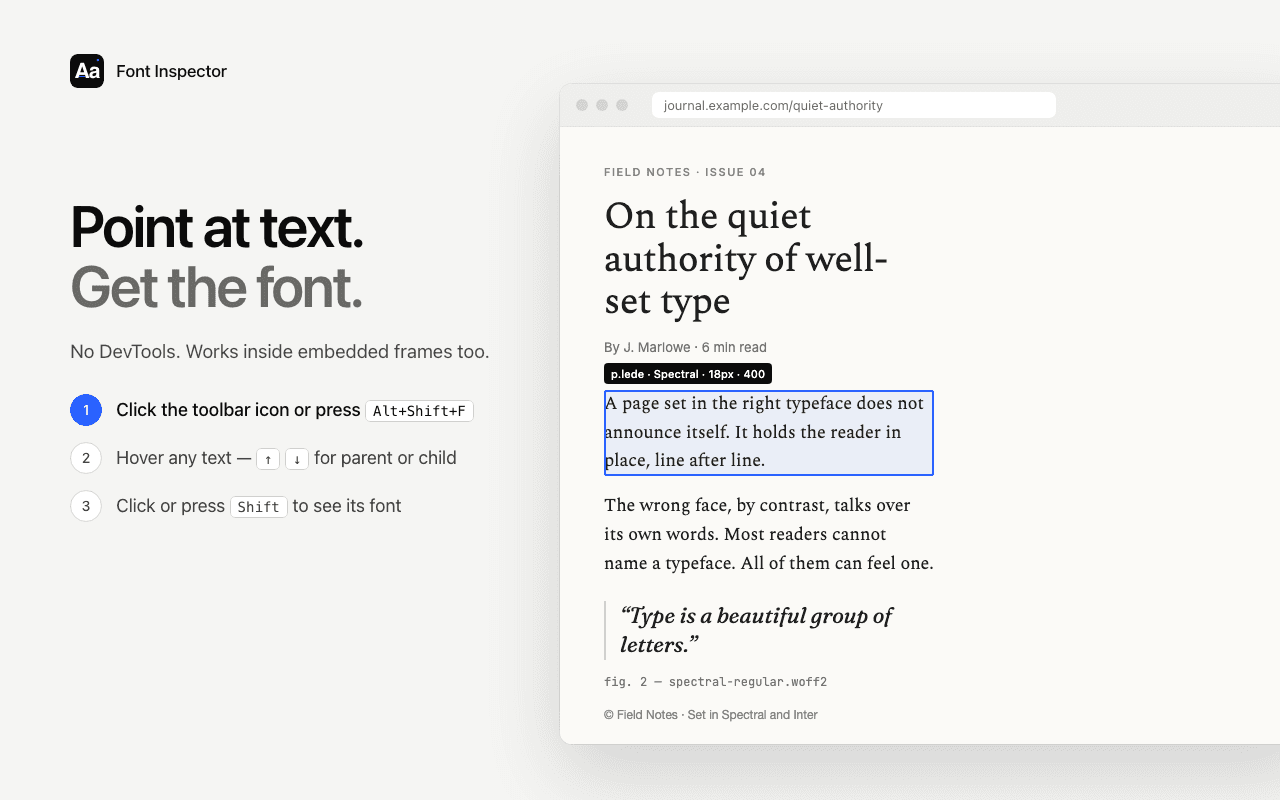
Using Edge or Brave? You can skip DevTools.
Font Inspector installs from the Chrome Web Store in both. Click any text to see the family, the rendered font with a fallback flag, size, weight and line height. Free, no account.
Brave, Arc, Opera and other Chromium browsers
Brave ships the same DevTools as Chrome, so the Computed tab and Rendered Fonts steps above work as written. It also installs extensions from the Chrome Web Store directly, with no extra setting, and Font Inspector runs there.
Other browsers built on Chromium, such as Arc, Opera and Vivaldi, generally include the same developer tools, though the menu path to open them can differ. Right-clicking the text and choosing the inspect option is the most reliable way in. Whether they accept Chrome Web Store extensions depends on the browser and its version, so check the browser’s own help pages before you rely on it.
Which route should you choose?
Font Inspector is not available for Firefox or Safari. Better to say that plainly than have you hunt for it in the wrong add-on store. Here is how to split the work.
- You live in Firefox and check a font now and then. Stay there. The Fonts tab is excellent, it shows the real rendered fonts, and the live editor and axis sliders are something no extension needs to replace.
- You use Safari. The Font panel is good for a quick name and for exploring a variable font. For fallback hunting, open the page in a Chromium browser.
- You use Edge or Brave. You have both options: Rendered Fonts in DevTools, or one click with Font Inspector.
- You collect type references across many sites. A built-in panel forgets everything when you close it. Font Inspector saves each inspection to a local library, compares up to four fonts side by side, and exports to JSON, CSS variables or design tokens. If Firefox or Safari is your daily browser, you can keep a Chromium browser on the side for this kind of research.
Whichever tool gives you the name, the next step is the same. Find out how to get the font you found, and check the license before you use it. For a tour of every method, including what to do with images, go back to how to identify the font on any website.
Would you rather have an extension in Firefox or Safari? Two exist. Fontanello has a Firefox version, and Fonts Ninja lists Firefox and Safari. Our comparisons set out what each one shows: Font Inspector vs Fontanello and Font Inspector vs Fonts Ninja.
Questions & answers
Where is the Fonts tab in Firefox?
Right-click the page, choose Inspect, and look in the Inspector’s side pane next to Rules, Layout and Computed. If the pane is narrow, the Fonts tab may be behind the overflow arrow at the end of the tab row.
How do I inspect a font in Safari?
Turn on the developer features in Safari’s Settings under Advanced, right-click the text and choose Inspect Element, then open the Font panel in the sidebar of the Elements tab. It shows the primary font with its properties, features and variation axes.
Does Firefox show the rendered font or only the CSS font?
The Fonts used section lists the fonts actually applied to the text in the selected element, including fallbacks and system fonts. The declared font-family stack is in the Rules tab.
Is Font Inspector available for Firefox or Safari?
No. Font Inspector runs in Chrome and in Chromium browsers that install from the Chrome Web Store, such as Edge and Brave. In Firefox and Safari, use the built-in Fonts tab and Font panel.
Can I install Chrome extensions in Microsoft Edge?
Yes. Open the extension’s Chrome Web Store page in Edge, allow extensions from other stores when Edge asks, and confirm with Add extension.
Related free tools: Font pairing playground · Type scale calculator
See it on real sites: What font does Microsoft use? · What font does Wikipedia use? · What font does The Guardian use? · What font does Dropbox use?
Sources and further reading: Firefox DevTools: view and edit fonts · WebKit: Web Inspector Elements tab · WebKit: enabling Web Inspector · Microsoft Support: add, turn off or remove extensions in Microsoft Edge · Chrome for Developers: CSS features reference