 font inspector
To identify a font from an image, crop one clean line of text, upload it to an image identifier such as MyFonts WhatTheFont, Font Squirrel Matcherator or WhatFontIs, and compare the suggestions letter by letter. The result is a best guess. If the same text exists as live text on a web page, inspect it there instead: that answer is exact.
First, check whether it is really an image
A lot of what looks like a picture on the web is ordinary text sitting on top of a photo or a colored box. Hero banners, pricing cards, quotes over a background, even many “posters” on a landing page are built this way. That matters, because live text carries its font name in the page’s code and an image does not.
The test takes two seconds. Try to select the words with your cursor, or double-click one word.
- Individual letters highlight. It is live text. Skip the image tools and read the font straight from the page. See how to identify the font on any website.
- The whole block drags as one picture, or nothing highlights. It is an image, a canvas or a video frame. Keep reading.
- You only have a screenshot. Ask yourself where it was taken. If it is a screenshot of a website or a web app, open that page. The real text is one click away and the answer will be exact.
Image identifier tools worth trying
When the text really is pixels, you need a tool that matches letter shapes against a catalog of fonts. They all work in a similar way: you upload a picture, mark the text, and get a list of candidates ranked by visual similarity. Each one searches a different catalog, so it pays to try more than one.
| Tool | How it works | Good to know |
|---|---|---|
| MyFonts WhatTheFont | Upload an image, adjust the crop box around the text, and browse matches. You can type your own words to preview each candidate. | Matches against the MyFonts catalog, so results lean toward commercial typefaces. Also available as a phone app for pointing the camera at print. |
| Font Squirrel Matcherator | Upload or link an image, select the text, then confirm which letter each detected shape is before matching. | Confirming the letters by hand helps on tricky images. Results can be filtered to free fonts. |
| WhatFontIs | Upload an image, clean it up in the built-in editor, confirm the characters, and get a long list of similar fonts. | Includes both free and commercial fonts. Free use is limited and ad-supported. |
| Adobe Fonts visual search | Upload an image on the Adobe Fonts site, select the region with the text, and see similar families. | Only suggests fonts in the Adobe Fonts library, and supports Latin text. Photoshop has a related Match Font command in its Type menu. |
None of these tools publishes an accuracy figure you can rely on, and results vary a lot with the quality of the image. Treat every result as a shortlist, not a verdict.
Prepare the image before you upload it
Most bad matches come from bad input. The matcher has to find letter outlines first, and anything that blurs or joins those outlines hurts the result. Five minutes in any image editor makes a real difference.
- Crop to one line in one style. Mixed fonts, sizes or weights in the same crop confuse the matcher. If the image has a headline and a tagline, run them separately.
- Use the largest, sharpest version you can find. Look for the original file instead of a thumbnail or a compressed social preview. Enlarging a small image afterwards does not bring the detail back.
- Straighten it. Rotate the text until the baseline is horizontal. For a photo taken at an angle, use a perspective correction tool so the letters are not skewed.
- Separate touching letters. Tight spacing, script joins and heavy outlines make two letters read as one blob. Erase a thin gap between them if you need to.
- Raise the contrast. Dark text on a plain light background works best. Convert to grayscale, remove the photo or texture behind the text if you can, and drop shadows, glows and outlines.
- Keep enough letters. A few distinct characters help more than a long word of repeated ones. Include a lowercase a, g or e if the image has them.
Compare the candidates by their telltale letters
You now have a list of fonts that look roughly right. Many typefaces share most of their shapes, so the way to pick the true match is to check the letters where designers make different choices. Type the same words from your image into each candidate’s preview and compare these.
| Look at | What to check |
|---|---|
| Lowercase a | Two-story with a bowl and a hood, or single-story like a handwritten a. The shape of the bowl and whether there is a tail. |
| Lowercase g | Single-story with an open tail, or double-story with a closed loop and an ear. |
| Lowercase y and t | A straight or curved tail on the y. On the t, the angle where the crossbar meets the stem and how the foot curves. |
| Uppercase R, Q, G | A straight or curved leg on the R. How the tail crosses the Q. Whether the G has a spur or a flat bar. |
| Numerals | An open or closed 4, a flat or curved top on the 3, the curve of the 2, and whether the 1 has a foot. |
| Terminals | How strokes end on c, e, s and a: cut horizontally, vertically, at an angle, or finished with a ball. |
| x-height | How tall the lowercase letters are next to the capitals. Two similar fonts often differ most here. |
Overlaying helps. Put the candidate at half opacity on top of your crop in a design tool and scale it until the cap height matches. If the letter widths and the spacing drift apart along the line, it is a cousin, not the same font. Check the weight too: you may have the right family and the wrong weight.
If the vocabulary is new to you, our guide to font pairing basics explains the main families of type and what sets them apart.
When the matchers fail, and who to ask
Sometimes every tool returns near misses. That is often a sign that there is no font to find.
- Logos and wordmarks. Many are drawn by hand, or started as a font and were then reshaped. At best you can find the starting point.
- Custom and modified type. Large brands commission their own typefaces, which are not for sale and are in no public catalog.
- Handwriting and hand lettering. If repeated letters look different from each other, it was written, not typeset.
- Old print and signage. Pre-digital type may have no exact digital version, only revivals that interpret it.
- Non-Latin scripts. Coverage in the matchers is thinner. Adobe states that its visual search supports Latin text.
When software runs out, people are surprisingly good at this. The Reddit community r/identifythisfont exists for exactly this question, and several typography forums run a font identification board. To get a useful answer, post the cleanest image you have, say where it comes from and roughly when it was made, and list the fonts you have already ruled out. Be patient, and thank whoever solves it.
The shortcut: find the same text live on a web page
Here is the part most image searches miss. Brands tend to use the same typeface across their graphics and their website. If your image is an ad, a social card, packaging or a screenshot from a company, open that company’s site and look for a headline that matches. Live text gives you an exact name, not a list of guesses.
You can do this with the browser alone. Right-click the text, choose Inspect, open the Computed tab and scroll to the Rendered Fonts section at the bottom. The full walkthrough is in how to find a font with Chrome DevTools, and there is a separate one for Firefox, Safari and Edge.
Font Inspector makes the same check a single click. To be clear about its limits: it does not identify fonts in images, screenshots, canvas or video. It reads live text on web pages. When the text is live, though, it is faster than any matcher and it is exact.
- Click the toolbar icon and choose Pick text on page, or press
Alt + Shift + F(Option + Shift + Fon Mac). You can also right-click the text and choose Inspect Font. - Hover the headline and click it. Use
↑and↓to move to the parent or child element if you grabbed the wrong one. - Read the family, the font actually rendered, the weight, the size and the spacing in the panel.
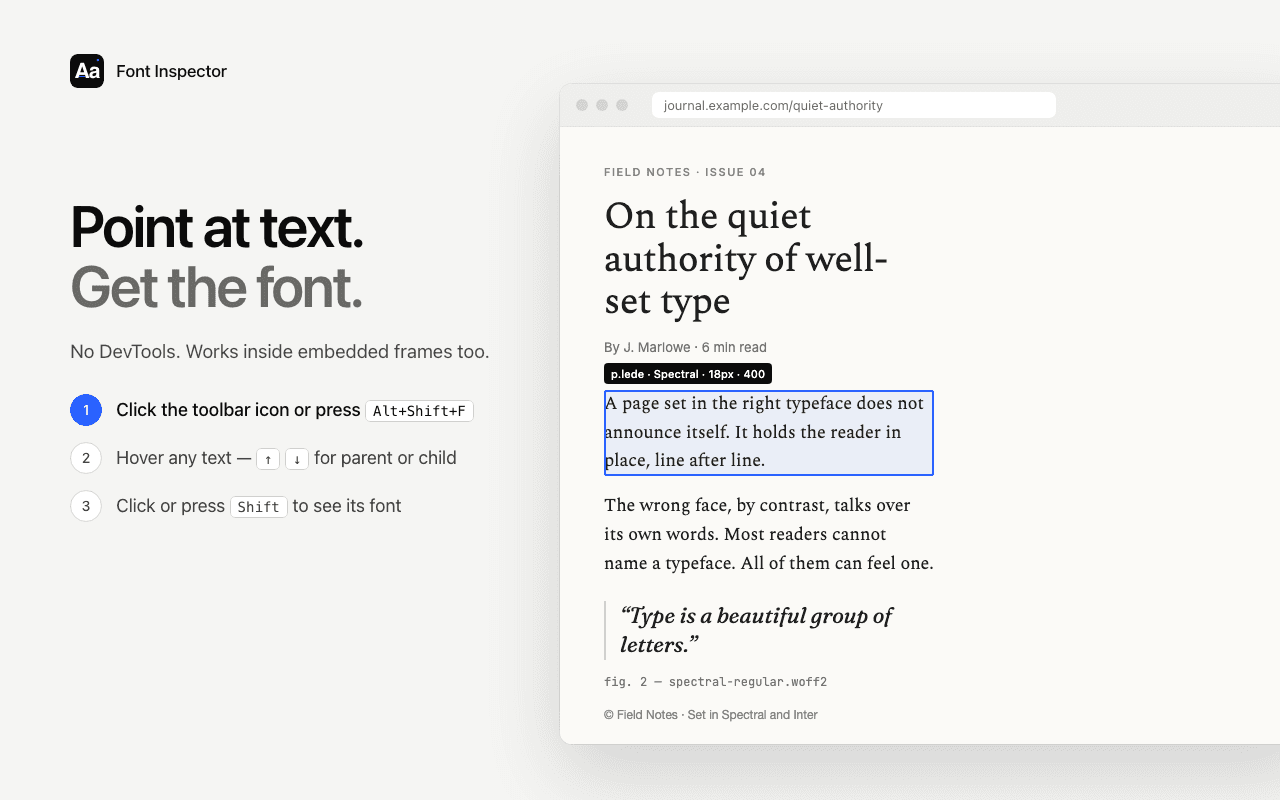
The panel also tells you where the font comes from: Google Fonts, Adobe Fonts, a self-hosted file or a font installed on your device. That answers the next question, which is where to get it. Use the exact name to confirm or reject the candidates from your image search. If the site turns out to use a different typeface than the graphic, you have still narrowed the field.
Exact, when the text is live.
Font Inspector reads the real font behind any live text on a page: family, rendered font, weight, size and source. It cannot read images, and it says so. Free, no account.
You have a name. Check the license before you use it
Identifying a font is always fine. Using it is a separate step, because fonts are licensed software. Fonts on Google Fonts are open source and free for commercial work. Adobe Fonts come with a Creative Cloud subscription. Most other professional typefaces need a license from the foundry, and desktop, web and app use are usually licensed separately.
Be careful with “free download” sites that show up when you search a font’s name. Many host files without permission. Go to the foundry or an authorized seller, and read font licensing explained if the terms are unfamiliar. When the original is out of budget, a free font with similar proportions is often close enough. Font Inspector suggests free Google Fonts look-alikes for many popular paid fonts. They are similar, not identical, so test them with your own text.
Questions & answers
How can I find a font from a picture?
Crop the image to one clean line of text and upload it to an image identifier such as MyFonts WhatTheFont, Font Squirrel Matcherator or WhatFontIs. Compare the suggested fonts letter by letter, because the result is a list of look-alikes, not a guaranteed match.
Can Font Inspector identify a font in an image or screenshot?
No. Font Inspector reads live text on web pages and cannot identify fonts in images, screenshots, canvas or video. If the screenshot shows a website, open that page and inspect the real text for an exact answer.
Why does the font identifier give me the wrong font?
The usual causes are a small or blurry image, letters that touch, a busy background, or several styles in one crop. It is also possible that the font is not in that tool’s catalog, or that the lettering is custom and not a font at all.
How do I tell whether text on a website is an image?
Try to select it with your cursor. If individual letters highlight, it is live text and you can inspect the font directly. If the whole block moves as one picture or nothing highlights, it is an image.
Is there a free font finder by image?
Yes. WhatTheFont and Matcherator are free to use, WhatFontIs has a limited free tier, and Adobe Fonts has a visual search on its site. The fonts they suggest may still need a paid license.
Related free tools: Font pairing playground
See it on real sites: What font does Substack use? · What font does Amazon use? · What font does Nike use? · What font does Tesla use?
Sources and further reading: MyFonts: WhatTheFont · Font Squirrel: Matcherator · WhatFontIs · Adobe Fonts: visual search