 font inspector
WhatFont is a small, focused tool: click its button, hover over text, and read the font name. It is a good fit if that is all you need, or if you want a bookmarklet that runs without installing anything. Font Inspector suits you better when you also want every font on the page in one list, the style copied as CSS, Tailwind or SCSS, and a saved library you can compare and export. Both install free of charge. Font Inspector needs no account, and WhatFont’s pages do not mention one.
The short answer
You are probably here for one of two reasons. Either WhatFont did not give you what you needed on some page, or you are choosing a font identifier and want to know how the well known one compares. This page covers both, using only what each vendor states publicly.
WhatFont’s public changelog goes back to 2011, and the tool does one job: it tells you the font of the text under your cursor. Its own site describes the goal as getting font information that is “just a click away”. Font Inspector covers the same job and adds page-wide reporting, code export and a local library. If you only ever ask “what font is this headline?”, the two will feel similar. The difference shows up in what you do after you have the name.
What WhatFont does, according to its own pages
We read the Chrome Web Store listing, the official WhatFont site and the GitHub repository on September 20, 2026. Here is what they state.
- Activation. On any web page, click the WhatFont toolbar button. Hover over text to see the font. Click an element to open a details box with the styles applied to it.
- Font in use. The repository describes the script as detecting “what font in the stack is being used”, so it aims to report the font that is drawn, not only the first name in the CSS.
- Font services. The official site says it detects fonts served by Typekit (now Adobe Fonts) and the Google Font API.
- Color. The site’s changelog notes that text color detection was added in version 1.6.1.
- Formats. It is offered as a Chrome extension, a Safari extension and a bookmarklet.
- Privacy. The Chrome Web Store listing says the developer will not collect or use your data. The site says no personal information is collected by the script.
- Version. The Chrome Web Store listing shows version 3.2.0, with its last update as March 4, 2024.
The listing shows no in-app purchases and neither page mentions a price or an account, so you can install it and start using it right away.
Feature comparison
Where a cell says “not mentioned”, the vendor’s pages do not describe the feature. That is not proof it is missing, so check the listing if the feature matters to you.
| WhatFont | Font Inspector | |
|---|---|---|
| How you start | Toolbar button, then hover and click | Toolbar button, Alt + Shift + F, or right-click and Inspect Font |
| Reports the font actually in use | Yes, per its repository | Yes, with a flag when a fallback is showing |
| Font source | Detects Typekit and Google Font API | Google Fonts, Adobe Fonts, self-hosted file or system font |
| Size, weight, line height | Shows the styles applied to the element | Yes, with size in px, em and rem and line height as a ratio |
| Text color | Yes | Yes, in HEX, RGB, HSL or OKLCH, with a WCAG contrast check |
| Every font on the page in one list | Not mentioned | Yes, ranked by share of text |
| Copy as CSS, Tailwind or SCSS | Not mentioned | Yes |
| Saved library, compare, export | Not mentioned | Yes, stored locally in the browser |
| Variable font axes and OpenType features | Not mentioned | Yes, when the page uses them |
| Works without installing | Yes, as a bookmarklet | No |
| Browsers | Chrome extension, Safari extension, bookmarklet | Chrome and Chromium browsers such as Edge and Brave |
| Price and account | No price or account mentioned | Free, no account |
When WhatFont is the better choice
- You want the smallest possible tool. Hover, read the name, move on. There are no panels to learn and nothing to manage.
- You cannot or do not want to install an extension. The bookmarklet runs from your bookmarks bar, which helps on locked-down work computers where extensions are restricted.
- You use Safari. WhatFont offers a Safari extension. Font Inspector is not available for Safari or Firefox. For those browsers, see how to find a font in Firefox, Safari and Edge.
- You like to read the source. The core script is public on GitHub, so you can see exactly how it decides which font is in use.
If that list describes you, WhatFont is a sensible pick and you do not need anything bigger.
When Font Inspector is the better choice
- You want the whole page at once. Fonts on this page lists every family, ranked by how much of the text uses it, with weights, sizes and fallback warnings. Hover a family to outline where it is used. More in how to see all fonts on a page.
- You need to know when a fallback is showing. The panel names the rendered font and flags it when it differs from the declared one. The background is in CSS font stacks and fallbacks.
- You are going to rebuild the style. Click any value to copy it, or copy the whole style as CSS, Tailwind classes or SCSS variables. See copy typography as CSS or Tailwind.
- You collect references. Every inspection is saved locally. You can pin favorites, group them into collections, compare up to four fonts with the same sample text, and export as JSON, CSS variables or design tokens.
- You want to get the font, not only name it. Get this font opens the family on Google Fonts or Adobe Fonts, lists the files a self-hosted font loads, and suggests free look-alikes for popular paid fonts. The look-alikes are similar, not identical.
- The text sits in an embedded frame. Font Inspector works inside iframes.
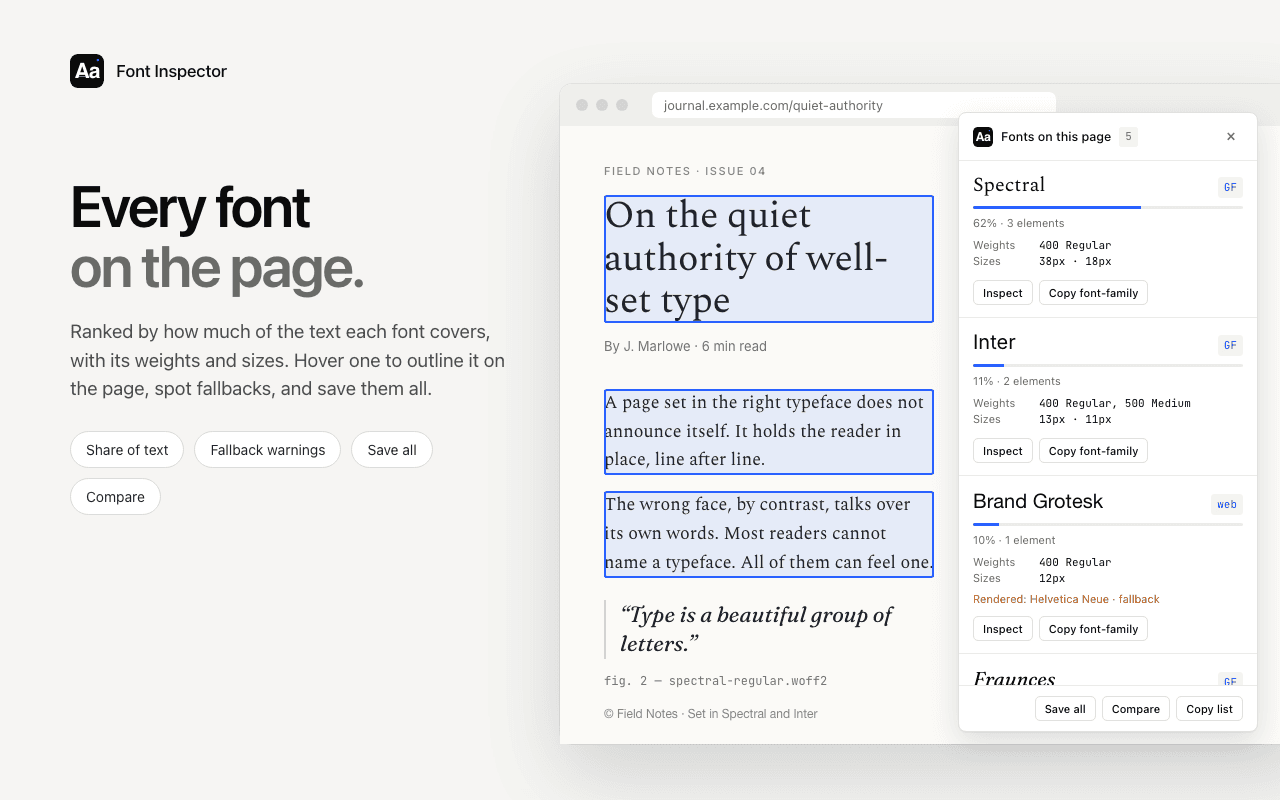
See every font on the page, not one at a time.
Font Inspector lists all families with their weights and sizes, flags fallbacks, and copies any style as CSS, Tailwind or SCSS. Free, no account.
If a font identifier is not working on a page
Many people arrive here after an identifier stayed silent on a page. Most causes are rules of the browser, and they apply to every extension, Font Inspector included.
- Protected pages. Chrome blocks all extensions on
chrome://pages and on the Chrome Web Store itself. Test on a normal website. - Tabs opened before installing. With Font Inspector, pages that were open before you installed or updated it need one refresh. A refresh is a cheap first step with any extension.
- The text is a picture. Logos, banners and canvas text contain no font data. No code inspector can read them. Use an image-based identifier instead.
- The text is inside an embedded frame. Some inspectors cannot reach into iframes. Font Inspector can.
When no extension cooperates, DevTools always works on live text. The steps are in how to find a font with Chrome DevTools.
Font Inspector as a WhatFont alternative
If you are searching for a WhatFont alternative, here is what carries over and what does not.
What carries over
- Hover to read the font. Pick mode previews the font under your cursor, and a click locks the panel open, as WhatFont does.
- A small, free tool. No account, no plan, nothing synced to a server.
- Chrome, Edge and Brave. Any browser that installs from the Chrome Web Store.
What you give up
- The bookmarklet. WhatFont can run from a bookmark without installing anything. Font Inspector is an extension only.
- Firefox and Safari. Font Inspector does not run there.
How to try both side by side
The two extensions do not conflict, so a fair test takes five minutes.
- Install both from the Chrome Web Store, then refresh the page you want to test.
- Pick a page you know well, ideally one where you already know the fonts. Inspect a headline, a paragraph and a button with each tool.
- Find a page where a web font fails to load, or block the font file in DevTools, and check what each tool reports. This shows how each handles fallbacks.
- Try the task you actually do most: grabbing a name, copying values into code, or auditing a whole page.
- Keep the one that matched your workflow and remove the other from the extensions page. Fewer extensions means a quieter toolbar.
Want more candidates before deciding? See the best font identifier extensions compared, or skip extensions entirely and paste a URL into the website font checker.
Questions & answers
Is there a good WhatFont alternative for Chrome?
Yes. Font Inspector identifies the font on click like WhatFont does, and adds a list of every font on the page, copy as CSS, Tailwind or SCSS, and a local library. It is free and needs no account.
Why is WhatFont not working on some pages?
Chrome blocks every extension on chrome:// pages and on the Chrome Web Store, and no code-based tool can read text that is part of an image. Refresh the tab, test on a normal website, and make sure the text is selectable.
Is WhatFont free?
Its Chrome Web Store listing shows no in-app purchases and its official site mentions no price or account. It is also available as a bookmarklet.
Can I use WhatFont and Font Inspector at the same time?
Yes. They are separate extensions with separate toolbar buttons and they do not interfere with each other.
Related free tools: Website font checker · Font pairing playground
See it on real sites: What font does Spotify use? · What font does Vercel use? · What font does Figma use? · What font does Canva use?
Sources and further reading: WhatFont on the Chrome Web Store · WhatFont Tool, official site by Chengyin Liu · WhatFont-Bookmarklet repository on GitHub