 font inspector
Right-click the text, choose Inspect, open the Computed tab and scroll to the Rendered Fonts section at the very bottom. That names the font Chrome is actually drawing and says whether it was downloaded or is installed on your computer. The font-family value higher up is only the list of fonts the site asked for.
Open DevTools on the right element
Chrome already knows which font it is drawing. The answer sits in DevTools, in a section most people never scroll down to. This guide walks the whole route, then shows the one-click version. Everything depends on selecting the element that actually holds the words.
- Right-click the text and choose Inspect. DevTools opens on the Elements panel with that element highlighted in the DOM tree.
- Or open DevTools first with
F12(Cmd + Option + Ion Mac), click Select an element in the top-left corner of DevTools, then click the text. The shortcutCtrl + Shift + C(Cmd + Shift + Con Mac) opens DevTools with the picker already switched on.
The picker outlines each element as you move, so you can see whether you are about to grab a single heading or the whole card around it. Its tooltip includes a font line with the size and family. Treat that as a preview: it is the declared value, not proof of what is on screen.
Styles or Computed: where to read the font
The side pane of the Elements panel opens on the Styles tab. Styles lists every CSS rule that touches the element, including the ones that lost. That is useful when you want to know where a value comes from, and slow when you only want the value.
The Computed tab next to it shows only the CSS that is actually applied. One property, one final value.
- Click Computed. If the DevTools window is narrow, the tab can be tucked behind the overflow arrow at the end of the tab row.
- Type
fontinto the Filter box to cut the list down. If a property you expect is missing, tick Show all to include inherited and default values. - Read the four properties in the table below. Expand any of them to see which rule set the value.
| Property | What Computed shows | Keep in mind |
|---|---|---|
font-family | The full declared stack, in order | A list of preferences, not the result. The first name is often right, but not always. |
font-size | The final size in px | A size written as 1.125rem appears as 18px. Convert back with the px to rem converter. |
font-weight | A number such as 400 or 700 | Keywords are resolved, so bold appears as 700. |
line-height | A px value, or normal | Divide by the font size to get the ratio designers talk about. 28px over 18px is about 1.56. |
Size and spacing get their own walkthrough in how to find the font size and line height on a website.
Rendered Fonts: the font that is actually drawn
Now scroll to the very bottom of the Computed tab, past the last property. There is a small section called Rendered Fonts. It does not come from the CSS at all. It is a report from Chrome’s text rendering layer about what it used to paint the selected element’s text.
| Part of the line | Meaning |
|---|---|
| Font name | The name stored inside the font file Chrome used. It can differ from the alias in the site’s CSS. |
| Network resource | A web font the page downloaded through an @font-face rule. |
| Local file | A font installed on your device. Either a system fallback, or a font the site expects you to have. |
| Glyph count | How many glyphs of the selected element’s text were drawn with that font. |
font-family is what the site asked for. Rendered Fonts is what happened. When the first name in the stack and the rendered font do not match, you are looking at a fallback. The mechanics are covered in CSS font stacks and fallbacks.Why several fonts can be listed for one element
Browsers choose a font per character, not per element. If the first font in the stack has no glyph for a character, Chrome moves down the list for that character only.
- An emoji, an arrow or a currency symbol that the brand font does not contain.
- A word in another script, such as Cyrillic or Japanese inside English copy.
- A pseudo-element such as
::first-linethat is styled with a different family.
The glyph counts tell you which font is the main one. Most glyphs from the web font and two from an emoji font is normal. Every glyph coming from Arial while font-family starts with a brand typeface means the web font did not load.
See the font files and the @font-face rules
Rendered Fonts names the font. It does not tell you where the file lives or which weights the site loads. Two more places answer that.
The Network panel, filtered by Font
- Open the Network panel and click the Font filter.
- Reload the page. DevTools only records requests while it is open, so an empty list usually means the fonts loaded before you opened it.
- Read the rows. Each one is a font file. The domain is the quickest clue:
fonts.gstatic.comis Google Fonts,use.typekit.netis Adobe Fonts, and the site’s own domain means self-hosted files. - Click a row and open its preview to see the characters in that file. File names often carry the real family name and the weight.
More on reading these clues in Google Fonts or Adobe Fonts: how to check.
Finding the @font-face rules
An @font-face rule is where a site connects a family name to its files. With DevTools focused, press Ctrl + Shift + F (Cmd + Option + F on Mac) to open the Search panel, which looks through every loaded file. Search for @font-face. Clicking a result opens that line in the Sources panel.
@font-face {
  font-family: "Site Serif";
  src: url("/assets/fonts/literata-400.woff2") format("woff2");
  font-weight: 400;
  font-style: normal;
}

@font-face {
  font-family: "Site Serif";
  src: url("/assets/fonts/literata-700.woff2") format("woff2");
  font-weight: 700;
  font-style: normal;
}A Console shortcut
If you prefer typing, the Console can answer the same questions. $0 is whatever element is selected in the Elements panel.
// Declared stack of the selected element
getComputedStyle($0).fontFamily;

// Web fonts this document has loaded
[...document.fonts]
  .filter((f) => f.status === "loaded")
.map((f) => f.family + " " + f.weight + " " + f.style);@font-face. It does not include system fonts.Four pitfalls that give you the wrong answer
1. You selected a wrapper
font-family is inherited, so a wrapper div reports a perfectly plausible stack. But Rendered Fonts describes the text of the selected node. If that node has no text of its own, the section can be empty or missing, and the font-family you read may be overridden further down. Expand the DOM tree until you reach the element that directly contains the words.
2. The text is inside an iframe
Embedded forms, widgets and ads are separate documents with their own CSS and fonts. Right-click and Inspect still works, and the DOM tree nests the frame’s document under the iframe element. The catch is the Console: it runs in the top page by default. Switch the JavaScript context selector at the top of the Console to the frame before running the snippets above, because document.fonts belongs to one document at a time.
3. The text lives in Shadow DOM
Web components keep their markup under a #shadow-root node in the DOM tree. Expand it to reach the real text element. Page styles do not reach into a shadow tree, but inherited properties such as font-family pass through from the host element.
4. The text is a pseudo-element
Text generated with ::before or ::after and the content property cannot be right-clicked precisely. Chrome shows these as their own child nodes in the DOM tree. Select the ::before node itself and the Computed tab describes it. ::first-line and ::first-letter have no node at all. Their rules appear in a separate group in the Styles tab of the parent element.
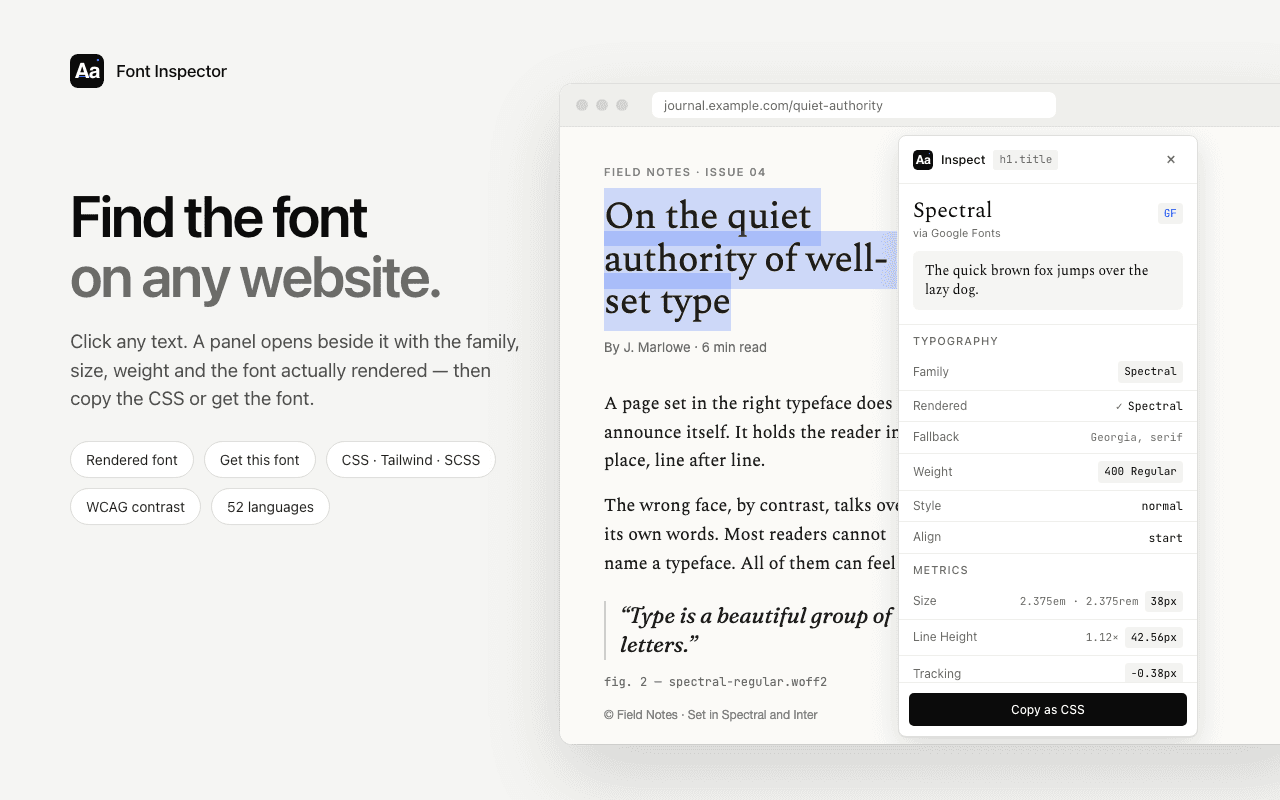
See the rendered font without the scrolling.
Font Inspector shows the declared family and the rendered font side by side, and flags a fallback when they differ. One click on the text, including text inside iframes. Free, no account.
The faster way: click the text with Font Inspector
The DevTools route is complete and worth knowing. It is also a lot of steps when you check fonts every day. Font Inspector is a Chrome extension that collects the same facts into one panel next to the text.
- Click the toolbar icon and choose Pick text on page, or press
Alt + Shift + F(Option + Shift + Fon Mac). You can also right-click any text and choose Inspect Font. - Hover the text and click it, or press
Shift, to lock the selection. - Grabbed a wrapper? Press
↓to step into the child element or↑for the parent.Esccancels.
| Task | Chrome DevTools | Font Inspector |
|---|---|---|
| Rendered font | Bottom of the Computed tab | Shown with the family, with a fallback flag when they differ |
| Size and line height | px, or normal for line height | px, em and rem, plus line height as a ratio |
| Where the font comes from | Network panel, then read the domain | Labeled per family: Google Fonts, Adobe Fonts, self-hosted or system |
| Every font on the page | The CSS Overview panel, under More tools, groups the page’s fonts by size, weight and line height | Fonts on this page ranks families by share of text and warns about fallbacks |
| Copying a style | One value at a time | CSS, Tailwind classes or SCSS variables |
DevTools is still the right tool when you want to edit CSS live or debug why a font file failed to load. A few limits apply to the extension: tabs that were open before you installed it need one refresh, Chrome blocks all extensions on chrome:// pages and on the Chrome Web Store, and rendered-font detection describes the primary family of an element. A line can still mix fonts character by character, for emoji for example. For that detail, the glyph counts in Rendered Fonts are the reference.
From the panel you can go on to see all fonts on a page or copy the typography as CSS or Tailwind.
Not sure which extension suits you? The best font identifier extensions for Chrome, compared covers seven of them: what each shows, how it starts, its price and whether it needs an account.
Does this work in Edge and Brave?
Yes, identically. Edge and Brave are built on Chromium, the same engine as Chrome, and they ship the same DevTools. Right-click, Inspect, Computed, scroll to Rendered Fonts. The Network panel’s Font filter and the file search work the same way too.
Font Inspector also runs in both. Brave installs extensions from the Chrome Web Store directly. Edge asks you once to allow extensions from other stores, and after that the install is the same. Firefox and Safari have their own, different font tools, covered in how to find a font in Firefox, Safari and Edge.
One last reminder: finding a font does not give you the right to use it. Before you put the same typeface on your own site, read font licensing explained.
Questions & answers
How do I check what font a website uses in Chrome?
Right-click the text, choose Inspect, open the Computed tab in the Elements panel and scroll to the Rendered Fonts section at the bottom. It names the font Chrome is actually drawing for that element.
Where is Rendered Fonts in Chrome DevTools?
It is at the very bottom of the Computed tab, below the list of CSS properties. If you do not see it, select the element that directly contains the text rather than a wrapper around it.
Why does Rendered Fonts show a different font from font-family?
The font-family property is an ordered list of preferences. If the first font did not load, is not installed or lacks a character, Chrome draws the next available one, and Rendered Fonts reports that.
What does “Network resource” or “Local file” mean in Rendered Fonts?
Network resource means the page downloaded the font as a web font. Local file means Chrome used a font installed on your device, which other visitors may not have.
Related free tools: PX to REM converter · Type scale calculator
See it on real sites: What font does Amazon use? · What font does Nike use? · What font does Tesla use? · What font does Duolingo use?
Sources and further reading: Chrome for Developers: CSS features reference · Chrome for Developers: DevTools answers, what font is that? · Chrome for Developers: Network features reference · Chrome for Developers: Search panel · MDN: font-family · MDN: @font-face