 font inspector
Font Inspector for
Brave.
Brave is built on Chromium and installs extensions straight from the Chrome Web Store, with no extra settings. Font Inspector works in Brave exactly as it does in Chrome.
Install it in Brave
- Open the Font Inspector page on the Chrome Web Store in Brave, using the button on this page.
- Start the install from the store page and confirm when Brave asks.
- Open the extensions menu in the toolbar and pin Font Inspector.
- Refresh any page that was already open, click the icon and choose Pick text on page, or press
Alt + Shift + F.
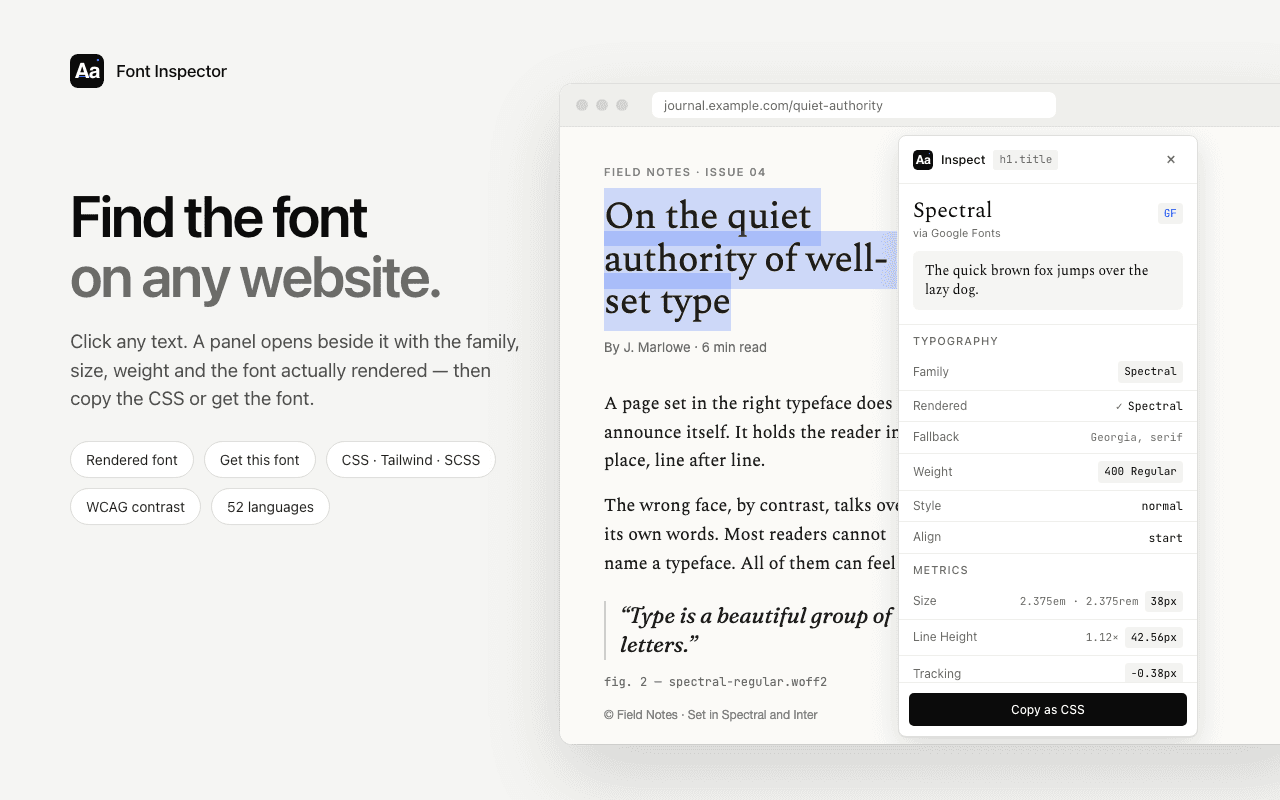
What you get
- The font family, the font actually rendered, and a warning when a fallback is showing.
- Size in px, em and rem, weight, line height, letter spacing and colors with a contrast check.
- Every font on the page, ranked by how much text it sets.
- Copy any style as CSS, Tailwind classes or SCSS variables.
- A local library to pin, group, compare and export what you find.
New to it? Start with how to identify the font on any website.
Find a font in Brave without an extension
Brave has the same developer tools as Chrome, so you can always check a font by hand.
- Right-click the text and choose Inspect.
- In the Elements panel, open the Computed tab and find
font-family. That is the stack the page asks for. - Scroll to Rendered Fonts at the bottom of the same tab. It names the font actually drawn and says whether it is a network resource or a local file.
That works well for one element. It gets slow when you want every font on a page, the values as CSS, or a record of what you found, and that is the gap the extension fills. The full walkthrough is in how to find a font with Chrome DevTools, which applies to Brave as well.
If it does not work
- Nothing happens on a page that was already open. Refresh it once. Extensions only reach pages loaded after they were installed or updated.
- The page is an internal one. Brave blocks all extensions on
brave://pages and on the Chrome Web Store. Try a normal website. - The text is part of an image. No code inspector can read pixels. See how to identify a font from an image.
- The text sits in an embedded frame. That is fine. Font Inspector works inside iframes, as explained in how to find a font inside an iframe or embed.
Questions & answers
Does Font Inspector work in Brave?
Yes. Brave installs Chrome Web Store extensions directly, and Font Inspector behaves the same as in Chrome.
Does Font Inspector track my browsing in Brave?
No. It never sends page addresses, page text or browsing history. It sends anonymous usage statistics, and your font library stays in your browser. Details are on the privacy page.
Can I find a font in Brave without an extension?
Yes. Brave has the same DevTools as Chrome: right-click the text, choose Inspect, open the Computed tab and look at Rendered Fonts.
Is Font Inspector free in Brave?
Yes. It is free in every browser it supports, with no account and no paid plan.
Why does nothing happen when I click the icon in Brave?
Pages that were open before you installed the extension need one refresh. Brave also blocks all extensions on its own internal pages and on the Chrome Web Store.