 font inspector
To list every font a page uses, open DevTools, go to the Network panel, filter by Font and reload: that shows each font file the page downloaded. It misses system fonts, so for the full picture use Firefox’s “All fonts on page” section, a short console snippet that tallies computed font-family values, or the Fonts on this page view in Font Inspector, which ranks every family by how much text it sets.
Why look at the whole page instead of one element
Clicking a headline tells you about that headline. It says nothing about the body copy, the buttons, the captions or the code samples, and those are often set in different families. When you want to understand a page’s typography, you need the full list. If you only need one element, start with how to identify the font on any website instead.
- Design audits. Sites pick up stray fonts over time: a widget that brings its own, a landing page built by another team, an old heading style nobody removed. A full list shows what is really in use.
- Performance. Every family, weight and style is usually a separate file the visitor has to download. You cannot trim what you have not counted.
- Consistency. Comparing the list against your design system shows where the page drifted from it.
- Learning. Seeing which family does which job, and at which sizes and weights, is the quickest way to understand how a site you admire builds its hierarchy.
Declared, loaded and rendered are three different lists
Before you count anything, decide which question you are asking. A page has three sets of fonts, and no two of them have to match.
| List | What it means | Where you see it |
|---|---|---|
| Declared | Fonts named in the CSS, in font-family stacks and @font-face rules. A wish list. | The stylesheet, the Styles pane, document.fonts |
| Loaded | Font files the browser actually downloaded for this page. | The Network panel, document.fonts entries with the status loaded |
| Rendered | Fonts the browser is drawing text with right now, including fonts installed on your device. | Rendered Fonts in Chrome and Edge, the Fonts tab in Firefox, Font Inspector |
The gaps between them are where the interesting findings are. A font that is declared but never loaded may be a broken URL, or a weight that nothing on this page needs. A font that is loaded but never rendered is wasted bandwidth. A font that is rendered but was never loaded is a system font, either by design or because a web font failed and a fallback took over. The mechanics are covered in CSS font stacks and fallbacks.
The built-in ways: the Network panel and Firefox’s Fonts tab
Network panel, filtered by Font
- Open DevTools and switch to the Network panel.
- Click the Font filter in the row of resource types.
- Reload the page. The panel only records requests made while it is open.
- Read the rows. Each one is a font file. The domain tells you the source:
fonts.gstatic.comis Google Fonts,use.typekit.netis Adobe Fonts, the site’s own domain means self-hosted files.
This is the right view for performance work, because it shows file sizes and formats. It has two blind spots. It lists files, not families, so you often see hashed names or several files for one family. And it shows nothing for system fonts, because nothing was downloaded. A page set entirely in a system font stack has an empty Font filter and still has typography worth looking at.
Firefox: All fonts on page
Firefox is the one browser with a page-wide font list built in. Right-click, choose Inspect, and open the Fonts tab in the Inspector’s side pane. At the top it shows the fonts used by the selected element. The “All fonts on page” section lists every font in use, with a preview of each. This is a list of rendered fonts, so system fonts are included. It does not tell you how much of the page each font sets. Browser-by-browser steps are in finding fonts in Firefox, Safari and Edge.
Two console snippets: what is used and what is loaded
When you want numbers in any browser, the console gets you there. Open DevTools, go to the Console and paste the snippet below. It walks every text node in the page, skips hidden elements and script or style content, reads the computed font-family of the parent element, and adds up the characters per first family in the stack.
const tally = {};
const walker = document.createTreeWalker(document.body, NodeFilter.SHOW_TEXT);
while (walker.nextNode()) {
  const node = walker.currentNode;
  const el = node.parentElement;
  const chars = node.textContent.replace(/\s+/g, "").length;
  if (!el || !chars || el.closest("script, style, noscript, template")) continue;
  const style = getComputedStyle(el);
  if (style.visibility === "hidden" || !el.checkVisibility()) continue;
  const family = style.fontFamily.split(",")[0].replace(/["']/g, "").trim();
  tally[family] = (tally[family] || 0) + chars;
}
const total = Object.values(tally).reduce((a, b) => a + b, 0);
console.table(
  Object.entries(tally)
    .sort((a, b) => b[1] - a[1])
    .map(([family, chars]) => ({
      family,
      chars,
      share: ((chars / total) * 100).toFixed(1) + "%",
    }))
);checkVisibility() needs a reasonably recent browser.List the loaded font faces with document.fonts
document.fonts is the page’s FontFaceSet: every face declared with @font-face or added by script. Each entry has a status of unloaded, loading, loaded or error. That makes it a quick way to compare declared against loaded.
document.fonts.ready.then((fonts) =>
  console.table(
    [...fonts].map((f) => ({
      family: f.family,
      weight: f.weight,
      style: f.style,
      status: f.status,
    }))
  )
);unloaded were declared, but nothing on the page has asked for them yet.Expect a long table on sites that use Google Fonts. Its stylesheets declare one face per script subset, so the same family and weight appears many times and most rows stay unloaded. System fonts never appear here at all, because they are not font faces the page declared.
The quick way: Fonts on this page
Font Inspector puts the three lists together. Open Fonts on this page in the extension and you get every family on the page, ranked by its share of the text. The share is counted in characters, not visual area, so a huge hero headline of four words ranks below the body font that sets the article.
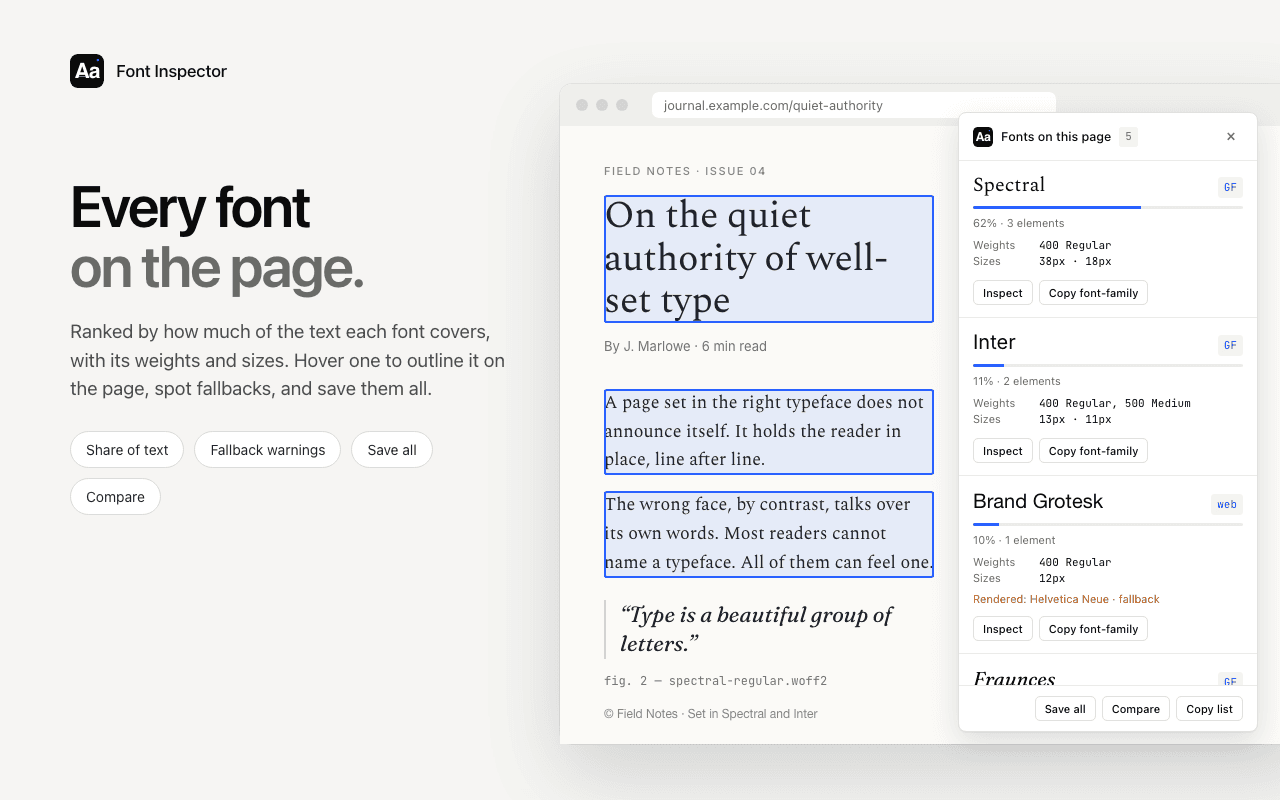
- Each family shows the weights and sizes it is used at.
- A fallback warning marks a family where the declared font is not the one being drawn.
- Hover a family to outline where it is used on the page. That answers “where on earth is that font?” in a second.
- Inspect a family for the full detail, save all of them to your library, compare them side by side, or copy the list.
Two honest limits. Very large pages are partly scanned, and the panel tells you when that happens. And like every code-based method, it reads live text only: lettering inside images, canvas or video is invisible to it. For those, see identifying a font from an image.
Most font identifiers answer for one element at a time: you hover, you read, you move on. That works for a single headline and gets slow for a whole page. Font Inspector vs WhatFont shows the difference in practice.
See every font on the page in one list.
Fonts on this page ranks each family by how much text it sets, shows its weights and sizes, and flags fallbacks. Free, no account, nothing to paste into a console.
How to read the list
How many families is reasonable?
There is no correct number, but there is a useful way to think about it. Each family should have a job. Most pages have two or three jobs at most: body text, headings, and sometimes code or data in a monospace. One family can do all of them, and many good sites work that way. When the list runs to five or six, ask what each extra family is for. The usual answers are an icon font, a third-party widget, or leftovers from a redesign.
Cost matters too. A system font stack downloads nothing. A web font costs one file per weight and style, unless it is a variable font, where a single file covers a whole range. That trade-off is explained in variable fonts explained. If you are choosing families rather than auditing them, font pairing basics covers how to pick two that work together.
Fallback warnings
A fallback warning means the page asked for one font and the browser is drawing another. Check the Network panel for a failed or blocked font request first. Then check whether the declared font is simply one you do not have: a stack that starts with a font installed on the designer’s Mac will fall back on Windows, and that is working as intended. It is only a bug when a web font the site meant to ship is missing.
Weights that are loaded but barely used
Compare the weights listed for each family with the font files in the Network panel. A file that was downloaded for a weight that does not appear in the list did nothing for this page. Before you remove it, check other templates and interactive states, since a weight may only appear in a hover style, a dialog or another page type. Use the hover outline to find where a rare weight lives. If it sets a single label, it is a good candidate to merge into a neighboring weight.
The reverse problem exists too. If the page uses weight 700 but only a 400 file was loaded, the browser thickens the regular font artificially. Synthetic bold looks smeared next to the real thing, and the fix is to load the real weight or stop asking for it.
Once you know which families matter, go deeper on each one: find the size, weight and line height of its main styles, then rebuild the system with the type scale calculator.
Questions & answers
How do I list all the fonts used on a website?
Open DevTools, go to the Network panel, filter by Font and reload to see every font file the page downloaded. To include system fonts, use Firefox’s “All fonts on page” section in the Fonts tab, or a font inspector extension that lists every family on the page.
How many fonts should a website use?
There is no fixed rule. Two or three families cover most needs: one for body text, one for headings and sometimes a monospace for code. More is fine when each family has a clear job, but every extra family and weight is usually another file to download.
Why does the Network panel show no fonts?
Either the page uses only system fonts, which are never downloaded, or the panel was opened after the page loaded. Keep the Network panel open, select the Font filter and reload.
What is the difference between a declared font and a rendered font?
A declared font is one named in the CSS. A rendered font is the one the browser actually draws. They differ when the declared font fails to load or is not installed, and the browser moves to the next font in the stack.
Does document.fonts list every font on the page?
No. It lists the font faces the page declared with @font-face or added by script, along with their loading status. System fonts that the page uses do not appear in it.
Related free tools: Type scale calculator
See it on real sites: What font does Medium use? · What font does Substack use? · What font does Amazon use? · What font does Nike use?
Sources and further reading: MDN: Document.fonts · MDN: FontFace.status · MDN: Window.getComputedStyle() · Chrome for Developers: Network features reference · Firefox DevTools: fonts