 font inspector
An iframe is a separate document with its own CSS and its own fonts, so tools that only read the top page miss it. In DevTools, right-click the text inside the embed and choose Inspect: the Elements panel lands inside the frame and the Computed tab works as usual. Font Inspector’s pick mode also works inside iframes, so you can click embedded text directly.
Why embedded content hides its fonts
You inspect a page, note the heading and body fonts, and then notice the newsletter form at the bottom is set in something else entirely. You search the site’s CSS for it and find nothing. The reason is simple: that form is not part of the page. It is another page, shown through a window.
An <iframe> loads a complete, separate HTML document inside a rectangle on the host page. That document has its own stylesheets, its own @font-face rules and its own font downloads. CSS does not cross the frame boundary in either direction. The host page cannot style the text inside, and the embed does not inherit the host’s font-family.
A lot of what you see on a modern site is delivered this way:
- Checkout and payment fields. Payment providers commonly isolate card inputs in frames for security.
- Video players from the large video platforms, including the title and controls drawn over the video.
- Newsletter and contact forms from email and CRM services.
- Booking and scheduling widgets, maps, chat windows and review carousels.
- Ads. Display ads usually sit in their own frame, sometimes several layers deep.
So the font question has two answers on such a page: what the site uses, and what each embed uses. If you are auditing a brand, the second list is where the inconsistencies hide.
The manual method: DevTools inside a frame
Browser DevTools handle frames well. You do not need any special mode, only to start from the right place.
- Right-click the text inside the embed and choose Inspect. The Elements panel opens with that element selected, inside the frame’s own document. You will see the
<iframe>tag in the tree with a nested#documentnode under it, and the embed’s<html>inside that. - Switch the side pane to the Computed tab and read
font-family,font-size,font-weightandline-heightas you would for any element. - In Chrome and Edge, scroll to the bottom of the Computed tab to the Rendered Fonts section. It names the font that is really being drawn in the frame and whether it came from the network or from a local file.
- To see the files, open the Network panel, filter by Font and reload. Font requests made by embedded frames are listed alongside the page’s own, and the request domain usually tells you which embed asked for which file.
In Firefox the steps are the same, with the Fonts tab of the Inspector in place of Rendered Fonts. If right-click is blocked inside the embed, which video players and some widgets do, use the element picker in the corner of DevTools and click the text with that instead. The full panel tour is in how to find a font with Chrome DevTools and the guide to Firefox, Safari and Edge.
<iframe> node in the Elements tree, open #document, and walk down to the text. Or use the element picker and aim at the letters.Running scripts: the JavaScript context selector
The Console is where people get stuck. By default it runs your code in the top document, so document.querySelector finds nothing that lives in a frame. Chrome’s Console has a JavaScript context drop-down in its toolbar that shows top by default. Open it, pick the frame you want, and every command now runs inside that document.
// Run this with the embed selected in the JavaScript context menu
const el = document.querySelector("label, p, h1");
const cs = getComputedStyle(el);
console.log(cs.fontFamily, cs.fontSize, cs.fontWeight, cs.lineHeight);

// Font faces this frame has actually loaded
const loaded = [...document.fonts].filter((f) => f.status === "loaded");
console.log(loaded.map((f) => f.family + " " + f.weight));A shortcut: when you select an element inside a frame in the Elements panel, the Console’s $0 refers to it, so getComputedStyle($0).fontFamily works without hunting for a selector.
Why a script on the page cannot do this
DevTools is a debugger, so it can look into every frame. Ordinary page scripts cannot. The browser’s same-origin policy stops a document from reading another document that came from a different origin. Most embeds are served from the provider’s domain, so from the host page they are sealed.
// Run in the top context of the host page
const frame = document.querySelector("iframe");
console.log(frame.contentDocument);
// A Document when the frame is same-origin.
// null when the frame comes from another origin.null for a cross-origin frame, so bookmarklets and pasted snippets cannot read its fonts.This is why a bookmarklet or an online checker reports the host page’s fonts and stays silent about the payment form. An online tool such as the website font checker reads the page you give it. To check an embed with one, give it the embed’s own URL, which you can find in the src attribute of the <iframe>.
Shadow DOM: the other kind of boundary
Some widgets are not iframes at all. They are web components that keep their markup in a shadow tree attached to a host element. In the Elements panel you will see a #shadow-root node under the component, and the widget’s real markup inside it.
The rules differ from iframes in a way that matters for fonts. Selectors from the page’s stylesheet do not reach into a shadow tree, but inherited properties still flow from the host element to its shadow content. font-family, font-size, line-height and color are all inherited. So a component that sets no font of its own picks up the page’s font, while an iframe never does.
| Iframe | Shadow DOM component | |
|---|---|---|
| What it is | A separate document | A scoped subtree of the same document |
| Inherits the page’s font? | No | Yes, unless the component sets its own |
| Page selectors apply inside? | No | No |
| Loads its own stylesheets and font files? | Yes | Shares the document’s fonts |
| Page scripts can read it? | Only when same-origin | When the shadow root is open |
| DevTools can inspect it? | Yes | Yes, expand #shadow-root |
To check a component by hand, select an element inside the #shadow-root node and read the Computed tab. Rendered Fonts works there as it does anywhere else.
What you cannot inspect, in any frame
Frames are inspectable because they contain live text. Some embedded content contains no text at all, only pixels, and no inspector can name a font from pixels.
- Canvas. Design tools, charts, games, some document viewers and some map renderers draw text onto a
<canvas>. The DOM holds one element and no words. - Video. Titles and captions burned into the footage are part of the picture. Player controls and separate subtitle tracks are usually live text and can be inspected.
- Images. Banner ads are very often a single image, even when they look like a headline and a button. SVG files with text converted to outlines are the same story.
The quick test is to drag across the words. If individual letters highlight, you have live text. If nothing highlights, take a screenshot and follow how to identify a font from an image. Font Inspector has the same limit: it reads live text and cannot identify fonts in images, canvas or video.
The faster route: click the embedded text
Font Inspector works inside iframes and embedded frames, so an embed needs no special handling. You point at the text, wherever it lives.
- Click the toolbar icon and choose Pick text on page, or press
Alt + Shift + F(Option + Shift + Fon Mac). You can also right-click the text and choose Inspect Font. - Hover the text inside the embed. The outline shows which element you are about to inspect. Click, or press
Shift, to lock it. - Embeds are usually built from many nested wrappers, so the first element you catch may be a container. Press
↑to move to the parent element or↓to move to the child until the outline hugs the text you mean.Esccancels.
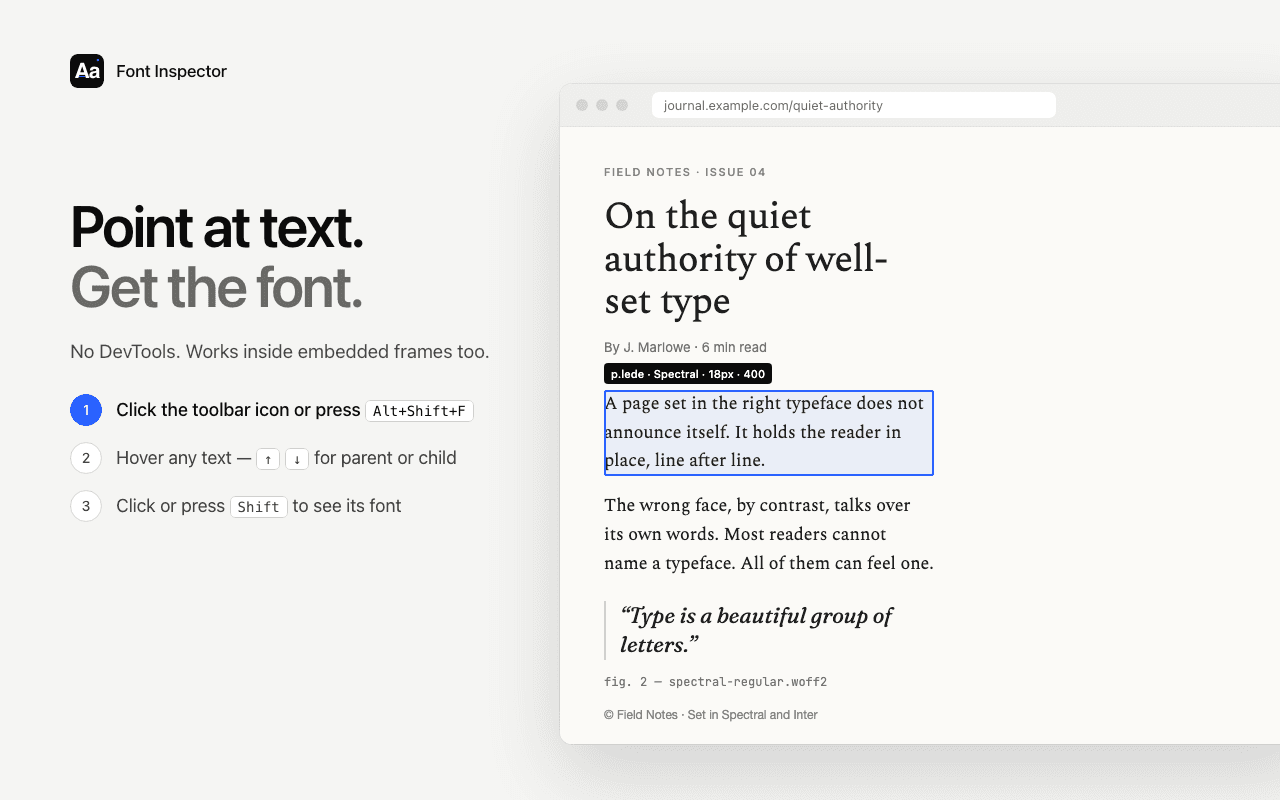
The panel then shows the same details as for any other text: the family and its full fallback stack, the font actually rendered with a fallback flag, the source, weight, size in px, em and rem, line height, letter spacing, colors and the element’s CSS selector path. The source line is the useful one for embeds. It tells you at a glance whether the widget pulls a Google Font, an Adobe Font, a file the provider hosts, or a font already installed on your device.
Inspect embedded text like any other text.
Font Inspector works inside iframes and embedded frames. Click the text in a form, player or widget, step between parent and child elements with the arrow keys, and read the rendered font. Free, no account.
Two practical notes. If the page was open before you installed or updated the extension, refresh it once. And Chrome blocks every extension on chrome:// pages and on the Chrome Web Store, so nothing can be inspected there.
What to do with the answer
Most people look inside an embed for one of two reasons: they like the type in someone’s widget, or their own widget looks out of place.
For the second case, remember that you cannot restyle a cross-origin frame with your CSS. The fix has to come from the provider’s side. Look in the embed’s settings for a font or appearance option, or for a documented way to pass a font in the embed code. Inspect your own body text first, copy the typography as CSS, and use those exact values in the provider’s settings so the sizes and weights line up, not only the family name.
If the provider offers no font setting, pick the closest match it does offer, or choose a widget that renders as a component in your page instead of an iframe. Those inherit your font-family by default, as the table above shows.
To audit a whole page, open Fonts on this page and compare its list with what you find in each embed. The guide to seeing every font a page uses walks through that audit. And if you plan to reuse a font you found in a widget, the usual rule applies: identifying it is fine, using it needs a license. See font licensing explained.
Questions & answers
Why does my font inspector not work on an embedded form?
The form is probably an iframe, which is a separate document. Tools that only read the top page cannot see inside it. Use DevTools by right-clicking inside the frame, or an extension that works inside iframes, such as Font Inspector.
How do I run JavaScript inside an iframe from the Console?
In Chrome DevTools, open the JavaScript context drop-down in the Console toolbar, which shows top by default, and choose the frame. Commands you type then run inside that frame’s document.
Does an iframe inherit the fonts of the page it is embedded in?
No. An iframe is its own document with its own CSS and font files, and styles do not cross the frame boundary. Shadow DOM components are different: they inherit font-family from the host element unless they set their own.
Can I change the font inside a third-party iframe?
Not with your own CSS when the frame comes from another origin. You need a font or appearance setting from the provider, or an embed option that renders the widget directly in your page.
Can I find the font used in a video or a canvas app?
Not with a code inspector. Text drawn into video frames or onto a canvas is pixels, so you need a screenshot and an image-based font identifier.
Related free tools: Website font checker
See it on real sites: What font does Duolingo use? · What font does Microsoft use? · What font does Wikipedia use? · What font does The Guardian use?
Sources and further reading: MDN: The Inline Frame element · MDN: Same-origin policy · Chrome for Developers: Console features reference · MDN: Using shadow DOM