 font inspector
Identify the font on the website first, then search for its name in Canva’s font list. If it is not there, you have two options: upload a font file you have licensed to your Brand Kit, which Canva offers on its paid plans only, or pick a free look-alike that is already in Canva. Then match the weight, the size relationships, the spacing and the HEX color, because they carry as much of the look as the family does.
Your website and your Canva designs should look related
There are two common reasons to match a website’s font in Canva. Either the website is yours, and you want your social posts, slides and flyers to look like they came from the same business. Or the website is someone else’s, and you like the type enough to borrow the mood for your own designs. The steps are the same in both cases: name the font, get it or something close into Canva, then copy the details around it.
Canva does not know anything about the website. It has its own font library, and a font only appears in your designs if it is in that library or you uploaded it. So the whole job starts with a name. Guessing from a list of thumbnails rarely ends well, because hundreds of sans serifs look alike at that size.
Identify the font on the website
First check that the words are live text. Try to select a few letters with your cursor. If they highlight one by one, your browser can name the font. If the headline is part of a picture, you need a tool that identifies fonts from images instead.
For live text, this is the manual route in Chrome, Edge or Brave.
- Right-click the text and choose Inspect.
- In the side pane, open the Computed tab and find
font-family. That is the list of fonts the site asked for, in order of preference. - Scroll to the bottom of the Computed tab. Rendered Fonts names the font the browser is actually drawing. That is the name to take to Canva.
- In the same tab, note
font-weight,font-size,line-height,letter-spacingandcolorfor the heading and for the body text.
The names under font-family and Rendered Fonts can differ. When they do, the site’s first choice failed to load on your computer and you are looking at a fallback. It is worth knowing which one you actually liked. The background is in font stacks and fallbacks, and the longer walkthrough is in how to identify fonts on a website.
The faster route: click the text
With Font Inspector, click the toolbar icon and choose Pick text on page, or right-click the text and choose Inspect Font. The panel names the family and the font actually rendered, and shows the weight, size, line height, letter spacing and the text color as a HEX code. Click any value to copy it. Fonts on this page lists every family the page uses, ranked by how much text is set in it, which tells you quickly which one is the heading font and which one is the body font.
Get the font name Canva needs.
Font Inspector names the font on any live text and shows where it comes from. Its Get this font section opens the family on Google Fonts or Adobe Fonts, and suggests free look-alikes for popular paid fonts. Free, no account.
Search for the font in Canva
Open your design, select a text box and select the font name on the toolbar. The font list opens in the side panel with a search field at the top. Type the family name you identified.
It helps to know where the website’s font comes from. If the inspector says Google Fonts, your chances are good: many open source families that are popular on the web are in Canva’s library too. If it says Adobe Fonts or self-hosted, the font is more likely a commercial typeface. Some of those are in Canva and many are not. Some fonts in the list carry a badge that marks them as part of a paid plan, so a font can exist in Canva and still not be available on a free account.
When you find the family, check the weights. In Canva you select the font name, then the icon next to the font in the side panel, and choose a weight. A website heading in 600 will not look right if Canva only offers that family in regular and bold. If the weight you need is missing, treat the font as unavailable and keep reading.
Upload the font to your Brand Kit
If the font is not in the list, you can bring your own. Canva’s help center describes font upload as a premium feature. It is available on Canva Pro, Canva Teams, Canva Business, Canva Education and Canva for Nonprofits, and in a team only owners, administrators and brand designers can upload. It is not part of the free plan.
- From the homepage side panel, select Brand. If you have several Brand Kits, choose the one you want to change.
- Go to Fonts and select Add to category, then Upload a font.
- Drag and drop your file, or select Choose files and pick it.
- Confirm and wait for the upload to finish. The font then appears in the font list of your designs under your uploaded fonts.
A few limits are worth knowing before you buy anything. Canva accepts OTF, TTF and WOFF files. It does not support variable fonts, so you need static files. Bold and italic are separate uploads: if you upload only the regular file, the bold and italic buttons will not give you the real styles. Canva groups up to 18 styles into one family.
No paid plan? Choose a look-alike that is already in Canva
On a free account you cannot upload, so the goal changes from the same font to the same impression. That is a reasonable goal. Most viewers never compare your Instagram post with your website letter by letter. They notice whether both feel like the same brand.
- Get candidate names. Font Inspector’s Get this font section suggests free Google Fonts look-alikes for popular paid and system fonts, and our free alternatives pages list them font by font. The suggestions are similar, not identical.
- Search each candidate in Canva’s font list. Keep the ones that exist there in the weights you need.
- Compare the survivors against the original. Look at the letters that give a typeface its character: lowercase
a,gande, capitalRandQ, and the numerals. Check the x-height too, meaning how tall the lowercase letters are next to the capitals. It changes how big the text feels at the same size. - Set your real headline in the finalist, not a sample sentence. A font that looks close in the alphabet can still feel wrong in your own words.
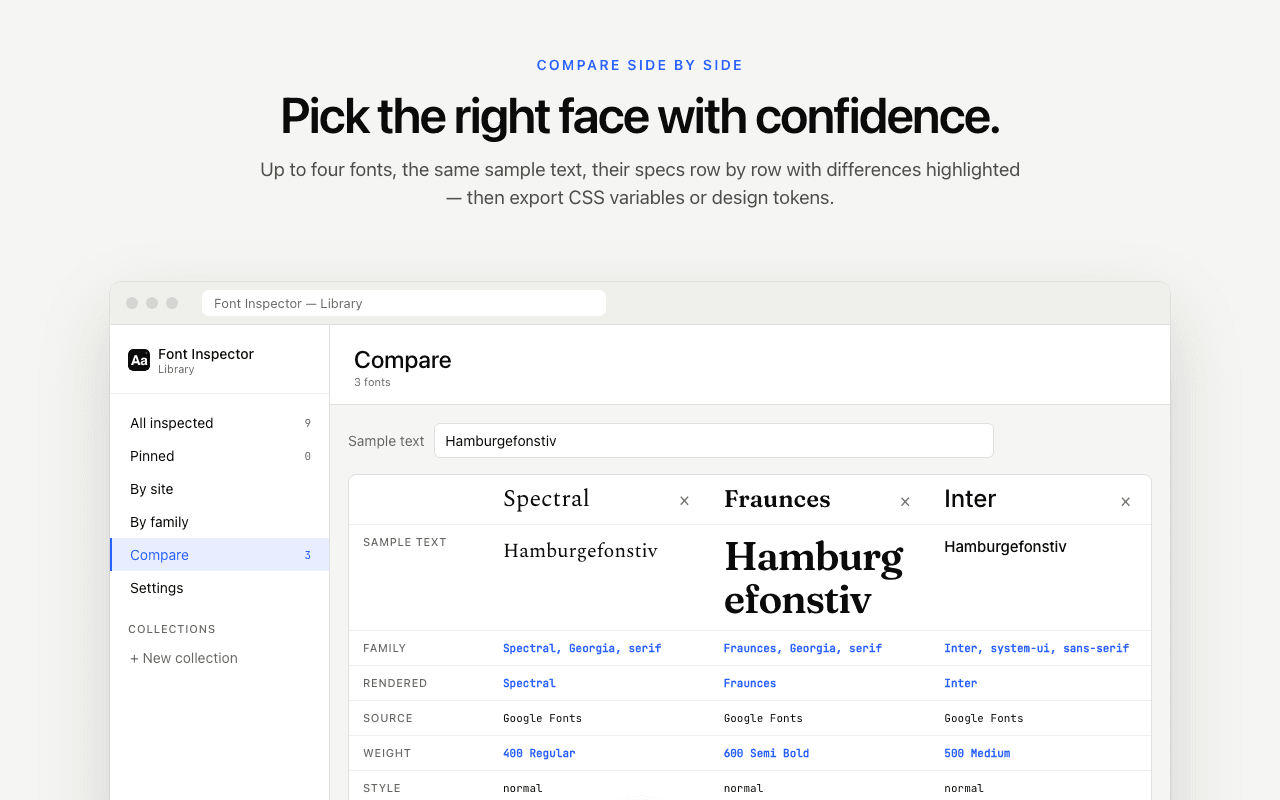
The extension can help with the comparison. Open each candidate’s page on Google Fonts, inspect the specimen text so it is saved to your library, then use the library’s compare view to see up to four fonts side by side with the same sample text.
If you need a second font to go with your choice, the font pairing tool and our font pairing basics will keep you out of trouble.
Match the weight, size, spacing and color
With the family settled, copy the details you noted from the website. They are what makes the design feel like the site and not just use its font.
- Weight and case. Use the same weight number as the site. If the site sets its small labels in uppercase, do the same in Canva with the aA icon on the toolbar.
- Size, as a ratio. A Canva design is not a browser window, so copying 56 pixels makes no sense on a 1080 pixel square. Copy the relationship. If the site’s heading is 56px and its body text is 18px, the heading is about three times the body size. Keep that ratio in your design. The type scale tool helps you build a consistent set of sizes from one ratio.
- Line spacing and letter spacing. Select the text, select Advanced Settings on the toolbar, and adjust the two sliders under Spacing. Canva’s sliders use their own scales, so treat the values from the website as a direction. Tight headings on the site mean negative letter spacing in Canva. Airy paragraphs mean more line spacing. Finish by eye against a screenshot of the site.
- Color. Copy the HEX code of the text color and the background color. In Canva, select the text, select Text color on the toolbar, add a new color and paste the code. Body text on websites is often a dark gray, and using pure black in Canva is a small mismatch that adds up.
The inspector panel also runs a WCAG contrast check on the text and background colors. If the site’s combination passes, reusing both colors in your design carries that readability over. How to read all these values on a page is covered in how to find font size and line height.
Once the text looks right, save yourself the work next time. On a paid plan, set the fonts and colors in your Brand Kit so they are ready in every new design. On a free plan, keep one design as your master template and duplicate it for every new piece.
Questions & answers
How do I find a website’s font in Canva?
Identify the font on the website first: right-click the text, choose Inspect, open the Computed tab and read Rendered Fonts, or click the text with a font inspector extension. Then select a text box in Canva, select the font name on the toolbar and search for that family.
Can I upload my own font to Canva for free?
No. Canva’s help center lists font upload as a premium feature of Canva Pro, Canva Teams, Canva Business, Canva Education and Canva for Nonprofits. On the free plan, choose a similar font from Canva’s own library.
What font formats does Canva accept?
Canva accepts OTF, TTF and WOFF files. It does not support variable fonts, and bold and italic styles have to be uploaded as separate files.
Is it legal to use a website’s font in my Canva designs?
Only if you have your own right to use it. Fonts in Canva’s library are covered by Canva’s terms, and open source fonts such as Google Fonts can be uploaded freely. A commercial font needs a license that allows uploading it to a design tool. Do not reuse the files a website serves.
What if the font I want is not in Canva?
Either upload a licensed copy to your Brand Kit on a paid plan, or pick a free look-alike that Canva already has. Compare the lowercase a, g and e, the numerals and the x-height, and test it with your own headline.
Related free tools: Font pairing playground · Type scale calculator · Website font checker
See it on real sites: What font does Tesla use? · What font does Duolingo use? · What font does Microsoft use? · What font does Wikipedia use?
Sources and further reading: Canva Help Center: Upload and use Brand Kit fonts · Canva Help Center: Format text · Canva Help Center: Setting up and using brand fonts · Canva Help Center: Font upload error · Google Fonts: Frequently asked questions