 font inspector
Read six values from the live site: family, weight, size, line height, letter spacing and color. In Figma, font size is in pixels, line height is in pixels or percent of the font size, and letter spacing is in percent or pixels, so a CSS line height of 1.5 becomes 150% and a letter spacing of -0.02em becomes -2%. Google Fonts are available in Figma out of the box. Any other font has to be installed on your computer or uploaded to your account, with a license that allows it.
The six values that make text look the same
You saw a site whose type feels right, and you want that feeling in your Figma file: a mockup for a client, a redesign, or your own design system. Picking the same family gets you about halfway. The rest of the look lives in five more numbers, and if you skip them your frame will feel off without an obvious reason.
| Value | CSS property | Why it matters |
|---|---|---|
| Family | font-family, confirmed by the rendered font | The declared first choice is not always the font on screen. |
| Weight | font-weight | A heading in 600 and the same heading in 700 read as different brands. |
| Size | font-size | Sets the scale between headings and body text. |
| Line height | line-height | Decides how dense or airy a paragraph feels. |
| Letter spacing | letter-spacing | Tight tracking on large headings is a big part of a modern look. |
| Color | color | Body text is often a dark gray, not pure black. |
Capture these for each role you plan to rebuild. Usually that is the main heading, a section heading, body text, and one small style such as a caption or a button label. Four roles are enough to set up a useful set of text styles.
Capture the values from the live site
Your browser’s DevTools show all six values. Here is the manual route in Chrome, Edge or Brave.
- Right-click the text and choose Inspect. In the side pane, open the Computed tab.
- Use the filter box to find
font-family,font-weight,font-size,line-height,letter-spacingandcolor. The Computed tab gives you final values in pixels, which is what Figma wants. - Scroll to the bottom of the Computed tab and read Rendered Fonts. It names the font the browser is actually drawing. If it differs from the first name in
font-family, the site’s first choice did not load and you are looking at a fallback. - Write the values down, then repeat for the next text role.
This works well and costs nothing. It is slow when you need four or five roles from a page, and you have to convert colors and ratios yourself. The full walkthrough is in how to find font size and line height.
The faster route: click the text
With Font Inspector, click the toolbar icon and choose Pick text on page, or press Alt + Shift + F (Option + Shift + F on Mac), then click the text. One panel shows the family, the font actually rendered, the weight as a number and a name, the size in px, em and rem, the line height in px and as a ratio, the letter spacing, and the text color in HEX, RGB, HSL or OKLCH. Click any value to copy it. The ratio is the number you need for Figma’s percent line height, so there is nothing to work out.
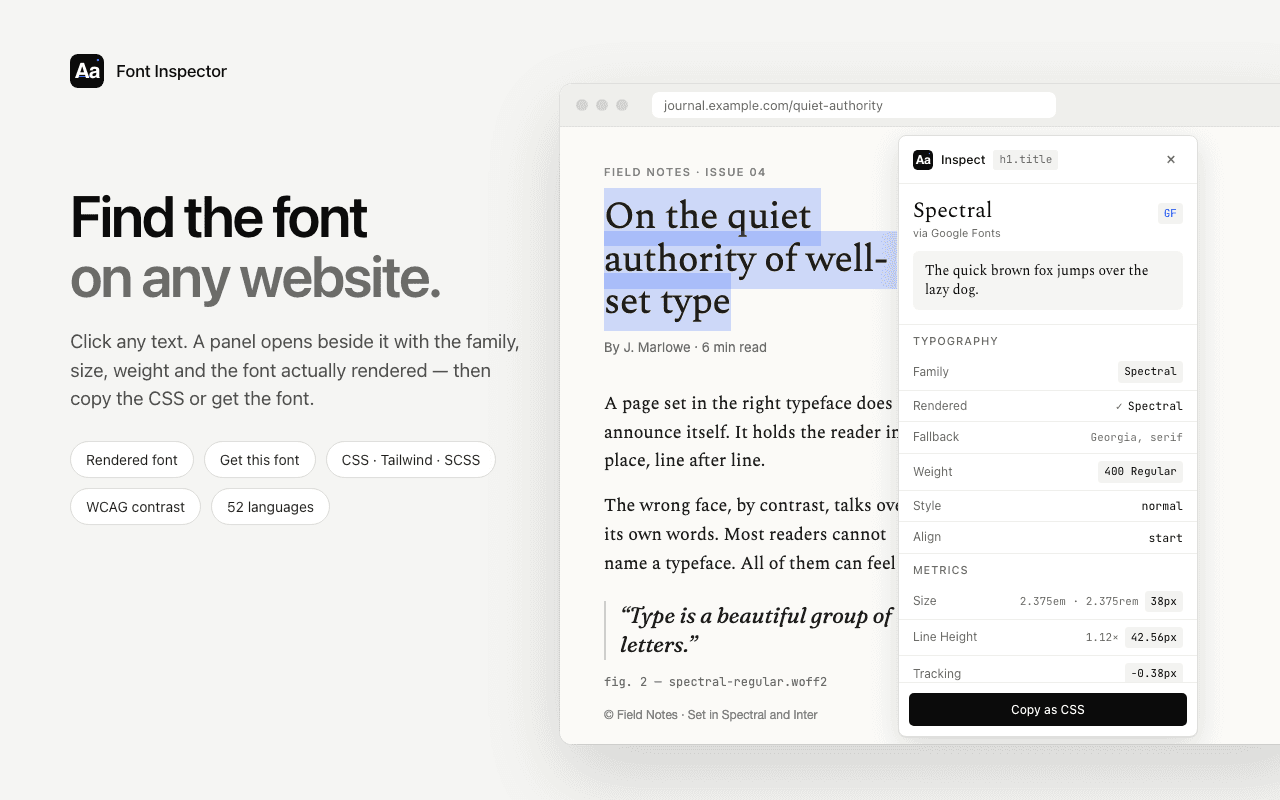
Collect a site’s text styles in a few clicks.
Font Inspector shows size, line height as a ratio, letter spacing and color for any live text, and Copy as CSS puts the whole style on your clipboard. Every inspection is saved to a local library you can export as design tokens. Free, no account.
Get the font into Figma
Figma’s help center says files include Google fonts and Apple fonts by default. So if the site uses a Google family such as Inter, DM Sans or Playfair Display, you just search for it in the font picker. Our guide to checking whether a font is from Google Fonts or Adobe Fonts shows how to tell.
Any other font has to come from your computer. How that works depends on how you run Figma.
- Desktop app. The font installer is built in. Install the font on your computer and it shows up in Figma.
- Browser. You need to install the Figma font installer first, a small background service that Figma’s documentation also calls FigmaAgent. It has no window. It detects the fonts installed on your computer and makes them available on figma.com.
To find a local font, open the font picker in the right sidebar, open the filter dropdown and choose Installed by you. Figma also lets you upload font files to your account, and those appear under Uploaded by you. Teammates who do not have the font will see a missing font alert when they open the file, so agree on how the team gets it.
Convert CSS units to Figma units
CSS is flexible about units. Figma is not. Font size is always in pixels. Line height is a fixed pixel value or a percentage of the font size, and it defaults to Auto, which uses the font’s own built-in line height. Letter spacing is a percentage of the font size or a pixel value. Here is how the common CSS forms translate.
| On the website | In Figma | How |
|---|---|---|
font-size: 1.125rem | 18 | Multiply rem by the root size, usually 16. Or read the px value directly. |
line-height: 1.6 | 160% | Multiply the ratio by 100. |
line-height: 28.8px at 18px | 28.8 or 160% | Type the pixels, or divide by the font size for the percent. |
line-height: normal | Auto | Both use the font’s built-in metrics. Results can differ slightly. |
letter-spacing: -0.02em | -2% | Multiply em by 100. |
letter-spacing: 0.5px at 12px | 0.5px or 4.17% | Type the value with px, or divide by the font size and multiply by 100. |
font-weight: 600 | Semi Bold | Figma lists weights by name. The panel shows both the number and the name. |
Prefer percent for both line height and letter spacing. A percent value keeps its proportion when you resize the text, which is exactly how a unitless CSS line height and an em letter spacing behave on the site. Pixel values stay fixed and quietly go wrong the moment you change the size.
If you would like a tool to do the arithmetic, the letter spacing converter turns px and em into Figma’s percent and back, and the line height calculator converts between pixels, ratios and percent. For sizes set in rem, use the px to rem converter.
/* Copied from the live site */
h1 {
  font-family: "Fraunces", Georgia, serif;
  font-weight: 600;
  font-size: 56px;
  line-height: 61.6px;      /* 61.6 / 56 = 1.1 */
  letter-spacing: -1.12px;  /* -1.12 / 56 = -0.02em */
  color: #1f2328;
}

/* The same style in Figma
   Font: Fraunces, Semi Bold
   Size: 56
   Line height: 110%
   Letter spacing: -2%
Fill: 1F2328 */Build the text styles
A text style saves the type settings under a name, so you set them once and apply them everywhere. Make one text layer per role, type in the values, then turn each layer into a style.
- Select the text layer.
- In the Typography section of the right sidebar, click the style icon, then click the plus to create a new style.
- Give it a name and click Create style. A slash in the name groups styles into folders, for example
Heading/H1andBody/Default. - Repeat for each role, then apply the styles to the rest of your text.
According to Figma’s help center, a text style stores the font family, weight and size, line height, letter spacing, paragraph spacing, decoration, letter case and OpenType features. It does not store color or alignment. So save the text color you captured as a separate color style or color variable, and apply both to the layer.
If the site uses a variable font with an unusual weight such as 450, or OpenType features such as alternate numerals, note those as well. The inspector panel lists variable font axes and OpenType features when the page uses them, and Figma has matching controls in its type settings. There is a primer in variable fonts explained.
Go further with variables and tokens
For a one-off mockup, text styles are enough. For a design system, put the raw values in variables and let the styles point to them. Figma supports string variables for the font family and for the weight or style, and number variables for font size, line height and letter spacing. Create a variable such as font/family/heading, open the font family dropdown in a text style, choose Apply variable and pick it. Changing the variable later updates every style that uses it.
This is where the extension’s exports earn their place. Each inspection is saved to a local library in your browser. After a session of clicking through headings, body text and buttons, you can export the library as design tokens, CSS variables or JSON. That file is a precise written record of the type system you studied: names, sizes, line heights, tracking. Use it as the spec you build your variables from, and share it with the developer who will implement the design so both sides start from the same numbers.
Copy as CSS is the quick version of the same idea. Paste the block into a note next to your frame, or into the description of the text style, and anyone can check the Figma values against the source. If a developer is on the project, the same panel copies the style as Tailwind classes or SCSS variables. See copy typography as CSS or Tailwind.
Check your frame against the real page
Take a screenshot of the site at 100% zoom, paste it into Figma, and place your text layer on top at reduced opacity. Set the same words at the same width. If line breaks land in the same places and the baselines line up down the paragraph, your values are right.
Expect small differences. Browsers and Figma do not render type with the same engine, so letter shapes can look a touch heavier or lighter, and the first line can sit a pixel or two higher or lower inside its box. Judge the match by line breaks and rhythm, not by single pixels. If everything is wrong at once, check the family first: you may have matched the declared font while the site was showing a fallback.
Questions & answers
How do I find out what font a website uses so I can use it in Figma?
Right-click the text, choose Inspect, open the Computed tab and read Rendered Fonts at the bottom. A font inspector extension gives the same answer with one click, along with the size, weight, line height and letter spacing you need for Figma.
Are Google Fonts available in Figma?
Yes. Figma’s help center says Google fonts are included in files by default, so you can search for the family in the font picker without installing anything.
How do I use a font in Figma that is not a Google font?
Install it on your computer. The Figma desktop app picks up local fonts on its own. In the browser you first need to install the Figma font installer. You need a license that allows desktop use.
How do I convert CSS letter spacing to Figma?
Figma’s percent letter spacing is a percentage of the font size. Multiply an em value by 100, so -0.02em becomes -2%. For a px value, divide it by the font size and multiply by 100, or type the value with px.
How do I convert CSS line height to Figma?
Multiply a unitless CSS line height by 100 to get Figma’s percent, so 1.5 becomes 150%. A pixel line height can be typed into Figma as it is.
Related free tools: Letter spacing converter · Line height calculator · PX to REM converter · Type scale calculator
See it on real sites: What font does Tesla use? · What font does Duolingo use? · What font does Microsoft use? · What font does Wikipedia use?
Sources and further reading: Figma Help Center: Add a font to Figma · Figma Help Center: Explore text properties · Figma Help Center: Create and apply text styles · Figma Help Center: Apply variables to designs · Figma developer documentation: LetterSpacing · MDN: line-height · MDN: letter-spacing