 font inspector
When a page embeds Google Fonts through Google’s API, every visitor’s browser contacts Google’s servers and reveals its IP address. A German court found this unlawful without consent in 2022. The simple fix is to self-host: download the WOFF2 files, write your own @font-face rules, remove the Google <link> tags, and confirm in the Network panel that no request goes to Google.
What happens when a page embeds Google Fonts
The standard embed code is a <link> tag in the page’s head, usually with two preconnect hints in front of it.
<link rel="preconnect" href="https://fonts.googleapis.com">
<link rel="preconnect" href="https://fonts.gstatic.com" crossorigin>
<link rel="stylesheet"
href="https://fonts.googleapis.com/css2?family=Inter:wght@400;700&display=swap">When someone opens the page, their browser makes two kinds of request. First it fetches a stylesheet from fonts.googleapis.com. That stylesheet contains @font-face rules, and the browser then downloads the font files they point to from fonts.gstatic.com.
Both requests go straight from the visitor’s browser to Google. Google’s own FAQ spells out what they contain: the visitor’s IP address, the requested URL, and HTTP headers including the user agent and the referer, which is the page the font is shown on. Google also says the API sets no cookies, is unauthenticated, and that it does not use this data to build profiles or for targeted advertising.
None of this is unusual for the web. Every server you contact sees your IP address. The legal question is a narrower one: under the GDPR an IP address can be personal data, and the site operator is the one who causes it to be sent to a third party, before the visitor has had a chance to agree to anything.
The Munich decision and the warning letters
On 20 January 2022 the Regional Court of Munich I (LG München I, case 3 O 17493/20) ruled against a website operator whose page loaded Google Fonts from Google’s servers, which passed the visitor’s dynamic IP address to Google without consent. The court treated the IP address as personal data, rejected the operator’s legitimate interest argument because the fonts can be used without contacting Google at all, ordered the operator to stop, and awarded the visitor 100 euros in damages.
What followed had more impact than the ruling. During 2022, large numbers of website operators in Germany and Austria received letters that cited the decision and asked for a payment to settle the matter. Austria’s Economic Chamber reports that thousands of Austrian businesses received them that summer. The campaigns drew scrutiny of their own: in December 2022 Berlin prosecutors announced an investigation into one of them on suspicion of attempted fraud and extortion, alleging that the website visits behind the claims had been automated.
Why this is a risk assessment, not a ban
Google Fonts is not banned in the EU, and the fonts themselves are not the issue. They are open source, and free for commercial use. The issue is only how the files reach the browser.
- The Munich judgment is one decision of one regional court about one website. It is not an EU-wide rule and it binds nobody else directly.
- The legal setting has moved since. In July 2023 the European Commission adopted the EU-US Data Privacy Framework for transfers to certified US companies. That speaks to the transfer question. It does not by itself settle whether you have a legal basis for sending the IP address to a third party in the first place.
- The court’s core argument still stands on its own feet: you do not need Google’s servers to use these fonts, so it is hard to call the transfer necessary.
Put that together and the practical answer is simple. If your site has visitors in the EU, self-hosting removes the question entirely, takes little work and, done properly, costs little or nothing in performance. Loading the fonts only after consent is the alternative, but it means most first-time visitors see fallback fonts. Austria’s Economic Chamber gives the same advice: host the fonts on your own server.
Check whether your site still calls Google
Before you change anything, find out where you stand. You can do this by hand in any browser.
- Open the page in a private window so that nothing is cached, then open DevTools and go to the Network panel.
- Reload the page. Type
fonts.gin the filter box. Any request tofonts.googleapis.comorfonts.gstatic.commeans the page is calling Google. - Switch the filter to Font to see every font file and the domain it came from.
- Repeat for a few different templates: the home page, an article, the contact page, the checkout. Plugins and embeds often load fonts only on some pages.
You can also view the page source and search for fonts.googleapis.com. That catches the obvious <link> tag, but not fonts that are added later by a script, a theme or a third-party widget. The Network panel sees everything.
Audit a page’s font sources at a glance.
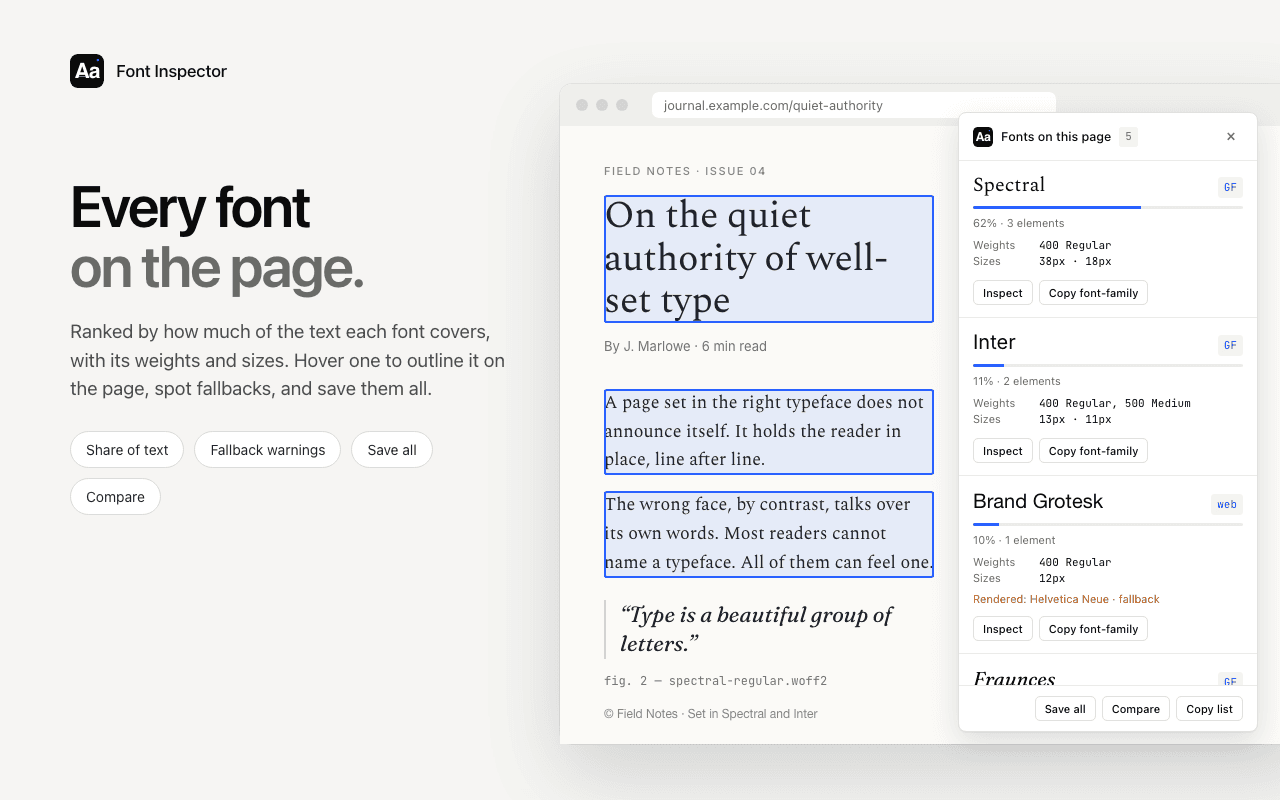
Open Fonts on this page in Font Inspector to see every family the page uses and where each one comes from. A Google Fonts label means the page is still loading that family from Google. Free, no account.
Font Inspector makes this a quick check. Fonts on this page lists every family on the page, ranked by share of text, and the extension shows the source of each family: Google Fonts, Adobe Fonts, a self-hosted web font or a system font. If a family is still labeled Google Fonts, the page is still calling Google for it. After the migration the same family should show as self-hosted. There is more about this view in how to see all fonts on a page.
How to self-host Google Fonts, step by step
1. Get the files as WOFF2
WOFF2 is the only format you need for current browsers. There are three common ways to get it.
- google-webfonts-helper at gwfh.mranftl.com is an open source tool that lets you pick a family, the styles and the character sets, then download WOFF2 files together with matching CSS.
- Fontsource publishes open source fonts as npm packages, which suits projects with a build step.
- Google Fonts itself offers a download for every family. Those files are meant for installing on a computer, so you would convert them to WOFF2 yourself.
2. Write the @font-face rules
Put the files in a folder on your own domain, for example /fonts/, and declare them in your stylesheet. A variable font covers every weight with one file. With static fonts, write one rule per weight and style.
/* latin */
@font-face {
  font-family: "Inter";
  font-style: normal;
  font-weight: 100 900;
  font-display: swap;
  src: url("/fonts/inter-latin-variable.woff2") format("woff2");
  unicode-range: U+0000-00FF, U+0131, U+0152-0153, U+2000-206F, U+20AC;
}

/* latin-ext */
@font-face {
  font-family: "Inter";
  font-style: normal;
  font-weight: 100 900;
  font-display: swap;
  src: url("/fonts/inter-latin-ext-variable.woff2") format("woff2");
  unicode-range: U+0100-02BA, U+1E00-1E9F, U+2C60-2C7F, U+A720-A7FF;
}font-display: swaptells the browser to show text in a fallback font right away and swap in the web font when it arrives. Text is never invisible while the font loads.unicode-rangetells the browser which characters a file covers. If the page uses none of them, the file is not downloaded. This is how Google’s API keeps downloads small, and you keep the benefit by splitting the family into subsets such as latin, latin-ext and cyrillic.- Use the same
font-familyname as before so the rest of your CSS keeps working.
3. Preload the one file that matters
The browser discovers font files late, after it has parsed the CSS. For the single most important file, usually the body text font in the latin subset, a preload hint starts the download earlier. Do not preload everything, because preloads compete with other critical resources. The crossorigin attribute is required for fonts even when the file is on your own domain.
<link rel="preload" href="/fonts/inter-latin-variable.woff2"
  as="font" type="font/woff2" crossorigin>
4. Remove every trace of the old embed
- Delete the
<link rel="stylesheet">tag that points tofonts.googleapis.com, and any@importof the same URL inside your CSS. - Delete the
preconnectanddns-prefetchhints forfonts.googleapis.comandfonts.gstatic.com. A preconnect opens a connection to Google even if nothing is downloaded. - Check your theme, page builder and plugins. Many have their own Google Fonts setting that adds the embed again.
- Look at third-party embeds such as maps, video players and form widgets. They can load fonts from Google on their own, and that needs a separate decision.
5. Verify
Repeat the audit from the previous section in a private window. The Network panel should show your font files coming from your own domain and no request to either Google domain. Then click through the main templates once more.
OFL.txt, on the server next to the fonts. If you subset or edit font files yourself, the OFL treats the result as a modified version, and a font with a Reserved Font Name must then be renamed. The basics are in font licensing in plain English.Framework shortcuts: Next.js and Fontsource
Some tools do all of the above for you.
Next.js
The next/font/google module self-hosts any Google Font automatically. The font files are fetched at build time, included as static assets and served from your own domain. The Next.js documentation states that no requests are sent to Google by the browser.
import { Inter } from "next/font/google";

const inter = Inter({ subsets: ["latin"] });

export default function RootLayout({ children }: { children: React.ReactNode }) {
  return (
    <html lang="en" className={inter.className}>
      <body>{children}</body>
    </html>
  );
}Fontsource
With any bundler, install the family as a package and import it once. The CSS and the WOFF2 files become part of your build, with unicode-range subsets already set up.
npm install @fontsource-variable/interimport "@fontsource-variable/inter";Whichever route you take, verify the result in the Network panel. A leftover <link> tag in a layout file will keep calling Google no matter how the fonts are bundled.
Will self-hosting make the site slower?
The old argument for Google’s CDN was the shared cache: a visitor who had already downloaded Roboto on another site would not need to download it again on yours. That stopped being true when browsers began to partition their HTTP caches by site. Chrome has done so since version 86. A font cached while visiting one site is not reused on another, even when the URL is identical. Google’s own FAQ now says the cross-site caching benefit is no longer true.
Self-hosting also saves the connections to two extra domains, since the fonts arrive over the connection the browser already has to your server. What you give up is Google’s automation: it picks the best file for each browser and ships font updates without any work from you. With WOFF2, unicode-range subsets and one preload you get very close, and you decide when a font update goes live.
Two details keep the swap from fallback to web font calm. Choose a fallback with similar proportions, as described in CSS font stacks and fallbacks. And if you load many weights, consider a variable font. One file replaces several, as explained in variable fonts explained.
Questions & answers
Is using Google Fonts illegal under the GDPR?
No law bans Google Fonts. A German regional court ruled in 2022 that loading them from Google’s servers without consent unlawfully passed a visitor’s IP address to Google. Self-hosting the fonts avoids the transfer altogether.
Does self-hosting Google Fonts make them GDPR compliant?
Self-hosting means the visitor’s browser no longer contacts Google for the fonts, so that particular data transfer does not happen. Google’s FAQ confirms it receives no visitor data when fonts are served from your own server. Your site’s wider compliance depends on everything else it loads.
Am I allowed to download Google Fonts and host them myself?
Yes. The fonts are open source and their licenses allow self-hosting. Keep the license text file with the font files on your server.
How do I check whether my website loads fonts from Google?
Open DevTools, go to the Network panel, reload the page and filter for fonts.g. Requests to fonts.googleapis.com or fonts.gstatic.com mean the page is calling Google.
Does next/font/google send data to Google?
Not from your visitors. Next.js downloads the font files at build time and serves them from your own domain, so the visitor’s browser makes no request to Google.
Related free tools: Font pairing playground
See it on real sites: What font does Wikipedia use? · What font does The Guardian use? · What font does Dropbox use? · What font does Webflow use?
Sources and further reading: Google Fonts FAQ: privacy · dejure.org: LG München I, 20 January 2022, 3 O 17493/20 (German) · SKW Schwarz: news on the wave of Google Fonts warning letters · WKO (Austrian Economic Chamber): Google Fonts warning letters (German) · European Commission: adequacy decision for the EU-US Data Privacy Framework · Chrome for Developers: HTTP cache partitioning · web.dev: best practices for fonts · MDN: unicode-range · Next.js docs: font optimization · Fontsource documentation · google-webfonts-helper on GitHub